
Key takeaway: IPTV parental controls work best in layers: lock the device with a PIN, lock the player app, then hide or lock adult and unsuitable channel groups inside the player. Ten minutes of setup keeps children away from content you have not approved.
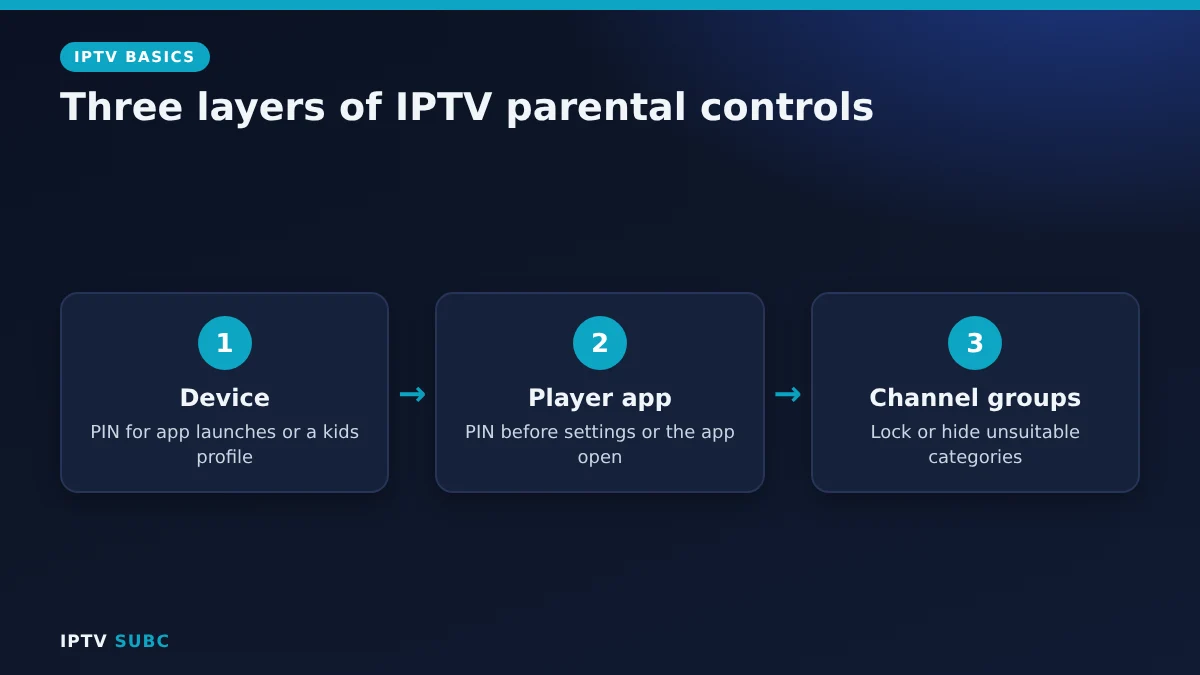
A big IPTV playlist can contain thousands of channels, films and series, and not all of them suit children. Unlike a cable box, there is no single switch that protects everything. Instead, you combine a few simple locks: one on the device, one on the player app and one on the channel groups.
This guide explains each layer in plain English and shows where to find the settings on Fire TV, Google TV and the two most popular players, TiviMate and IPTV Smarters Pro. No technical knowledge needed.
In this guide
Why IPTV needs more than one lock
Parental controls on a TV device only know about the apps on it. They cannot see inside an IPTV player, where the channels actually live. On the other hand, a player’s PIN does nothing if a child can simply open a different app. So the safest setup uses both:
- Device layer: stops children opening apps or buying content without a PIN.
- App layer: asks for a PIN before the player opens or before settings can be changed.
- Channel layer: hides or locks adult and unsuitable categories inside the player.
What you need
- Access to the TV device’s settings
- Your IPTV player installed and logged in
- A four-digit PIN that children do not know (and that differs from your bank PIN)
- About 10 minutes
Layer 1: Fire TV parental controls
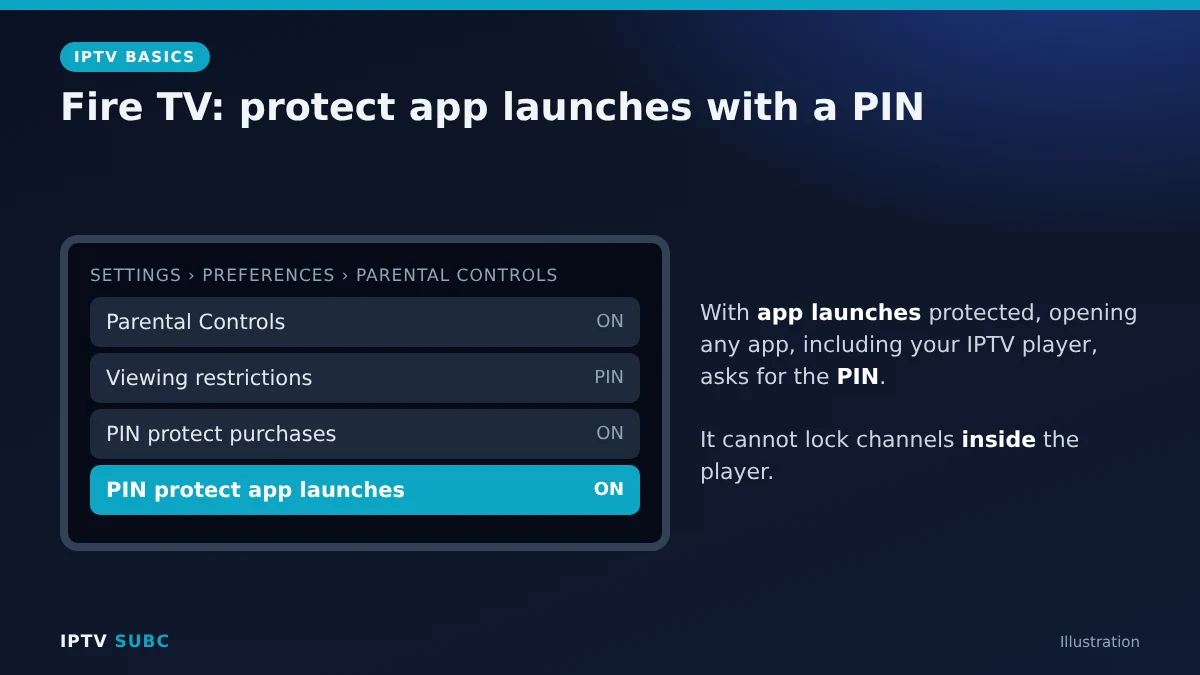
Fire TV has built-in parental controls protected by your Amazon Prime Video PIN. According to Amazon’s Fire TV help, you set them up like this:
- Open Settings.
- Select Preferences, then Parental Controls.
- Turn Parental Controls on and enter your PIN.
- Choose which options need a PIN, for example purchases, viewing restrictions and launching apps.
Once app launches are protected, opening any app, including your IPTV player, asks for the PIN. That alone stops younger children from wandering into the player.
Layer 1: Google TV kids profiles
Google TV takes a different approach: a separate kids profile with its own home screen. Google explains it in its kids profile guide:
- On the Google TV home screen, select your profile picture.
- Choose Add account, then Add a kid.
- Pick the apps your child may use. Simply leave the IPTV player out.
- Follow the prompts to set screen time and a profile lock.
Kids then see only the apps you approved, and you can add a lock so they cannot switch back to your profile.
Layer 2 and 3: TiviMate
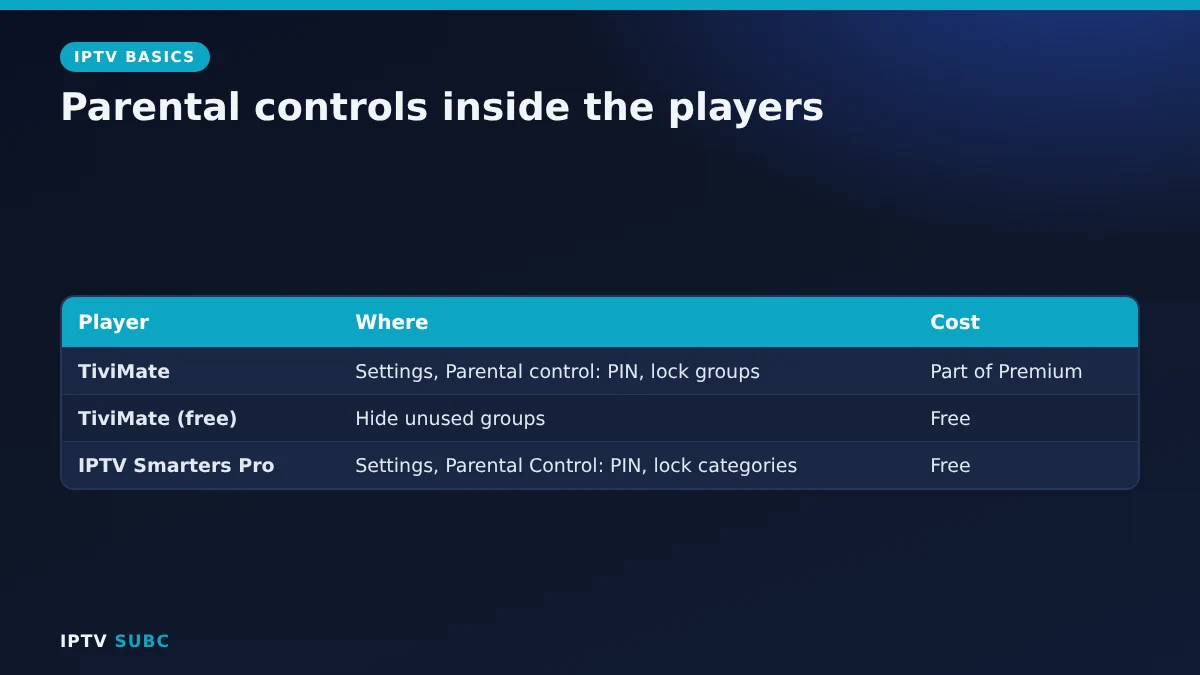
TiviMate includes parental controls as part of its Premium upgrade, together with features such as recording and multiple playlists. With Premium:
- Open Settings and find Parental control.
- Set a PIN.
- Choose which channel groups or channels to lock. Locked items ask for the PIN before they play.
- Also hide groups you never want shown, so they disappear from the guide entirely.
Using the free version? Work from a favourites list instead, and protect the whole app with the device-level lock above. New to TiviMate? See TiviMate on Fire TV.
Layer 2 and 3: IPTV Smarters Pro
IPTV Smarters Pro has a free parental control feature:
- Open Settings (the gear icon on the main screen).
- Select Parental Control and create a PIN.
- Choose the live TV, film and series categories to lock.
- Save. Locked categories now ask for the PIN.
Our IPTV Smarters Pro on Fire TV guide covers the rest of the settings.
Check your setup like a child would
- Hand the remote to yourself as if you were a child: try opening the player from the Home screen.
- Try browsing to a locked category and playing a channel.
- Try opening the player’s settings to unlock things.
- Try another app, such as a browser, that could reach unsuitable content.
If any step works without a PIN, add the missing lock.
Tips that make IPTV parental controls stick
- Use a different PIN for the device and the player, so one guess does not open everything.
- Hide what you never watch. A shorter playlist is safer and faster to browse.
- Re-check after updates. App or playlist updates can add new categories that are not locked yet.
- Ask your provider. Some providers can remove adult categories from your account entirely, which is the strongest option of all.
- Talk to your children. Locks help, but explaining why they exist works even better.
Troubleshooting
| Problem | Fix |
|---|---|
| Forgot the Fire TV PIN | Reset it through your Amazon account’s Prime Video settings |
| New adult category appeared | Playlist updated; lock or hide the new group |
| Child opens the player without a PIN | Protect app launches on Fire TV, or leave the player out of the kids profile |
| Locked channels still show in the guide | Hide the group as well as locking it |
For a refresher on how players and providers fit together, see our beginner’s guide to IPTV.
FAQ
Do IPTV players have parental controls?
Most good ones do. IPTV Smarters Pro includes them for free; in TiviMate they are part of Premium.
Can I remove adult channels completely?
Hiding them in the player removes them from view. For a permanent solution, ask your provider whether they can remove those categories from your account.
Do Fire TV parental controls lock channels inside IPTV apps?
No. They can lock the app itself, but not individual channels. Use the player’s own controls for that.
Is a kids profile on Google TV enough?
It is very effective if you leave the IPTV player out of the profile. Add a profile lock so children cannot switch back.
Will parental controls slow down my player?
No. They only ask for a PIN when needed.
Next steps
Set up your player first with TiviMate on Fire TV or IPTV Smarters Pro on Fire TV, then come back to lock it down.