Key takeaway: Downloader on Fire TV is the free tool that lets you install apps that are not in the Amazon Appstore, such as most IPTV players. You install it from the Appstore, unlock Developer Options once and allow it to install apps. The whole job takes about five minutes.
Almost every IPTV player for Fire TV is installed the same way: with Downloader. That is why it is the first thing to set up on a new stick. Once Downloader is ready, every later guide on this site starts with “open Downloader and enter this address”.
This guide is written for first-timers. We explain each screen you will see, what each permission means and how to keep your stick safe while you install apps.
What Downloader actually does
Downloader is a simple app made by AFTVnews. It works like a small web browser plus a file downloader. You type a web address, it downloads the file, and Fire OS installs it. That is all. It does not contain apps or channels of its own, and it is listed in the official Amazon Appstore.
Before you start: check your Fire TV supports Downloader
Most Fire TV devices run Fire OS, which supports Downloader. A few newer models run Vega OS, which only allows Appstore apps and does not offer Downloader at all. AFTVnews keeps a list of Vega OS models that cannot sideload.
| Works with Downloader (Fire OS) | Does not work (Vega OS) |
|---|---|
| Fire TV Stick 4K Max | Fire TV Stick 4K Select (2025) |
| Fire TV Stick 4K Plus | Fire TV Stick HD, 2nd generation (2026) |
| Fire TV Stick HD, 1st generation (2024) | |
| Fire TV Cube | |
| Smart TVs with Fire TV built in |
Check in 20 seconds: go to Settings, My Fire TV, About. “Fire OS” with a version such as 7 or 8 means you are good to go. Just “OS” with a version starting 1 or 2 means Vega OS.
What you need
- A Fire TV device running Fire OS, such as the Fire TV Stick 4K Max
- An internet connection
- Your Fire TV remote
- About five minutes
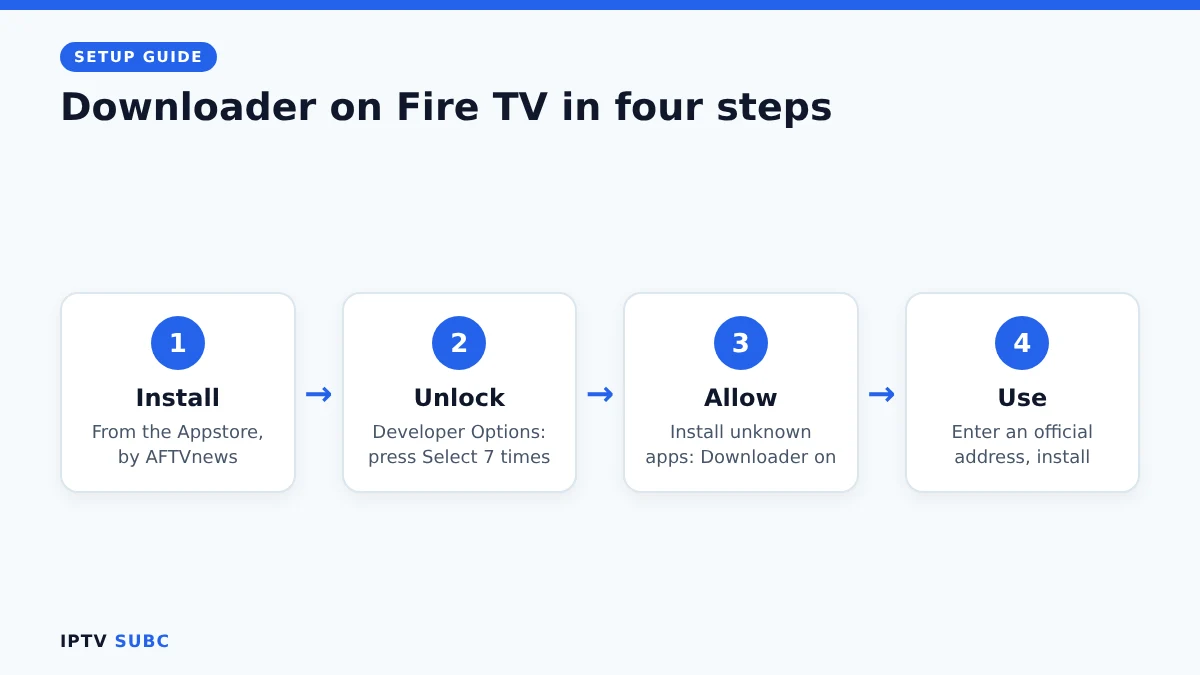
1. Install Downloader on Fire TV
- Press the Home button on your remote.
- Go to Find (the magnifying glass) and select Search.
- Type Downloader and select it from the suggestions.
- Choose the app with the orange icon made by AFTVnews. Avoid look-alike apps from other developers.
- Select Get or Download and wait a few seconds.
- Select Open. If Downloader asks for access to files and media, select Allow, then close the welcome message.
Tip: hold the voice button and say “Alexa, search for Downloader” to skip the typing.
2. Unlock Developer Options
On current Fire OS versions, Developer Options are hidden until you unlock them. You only do this once.
- Go back to the Home screen and open Settings.
- Select My Fire TV, then About.
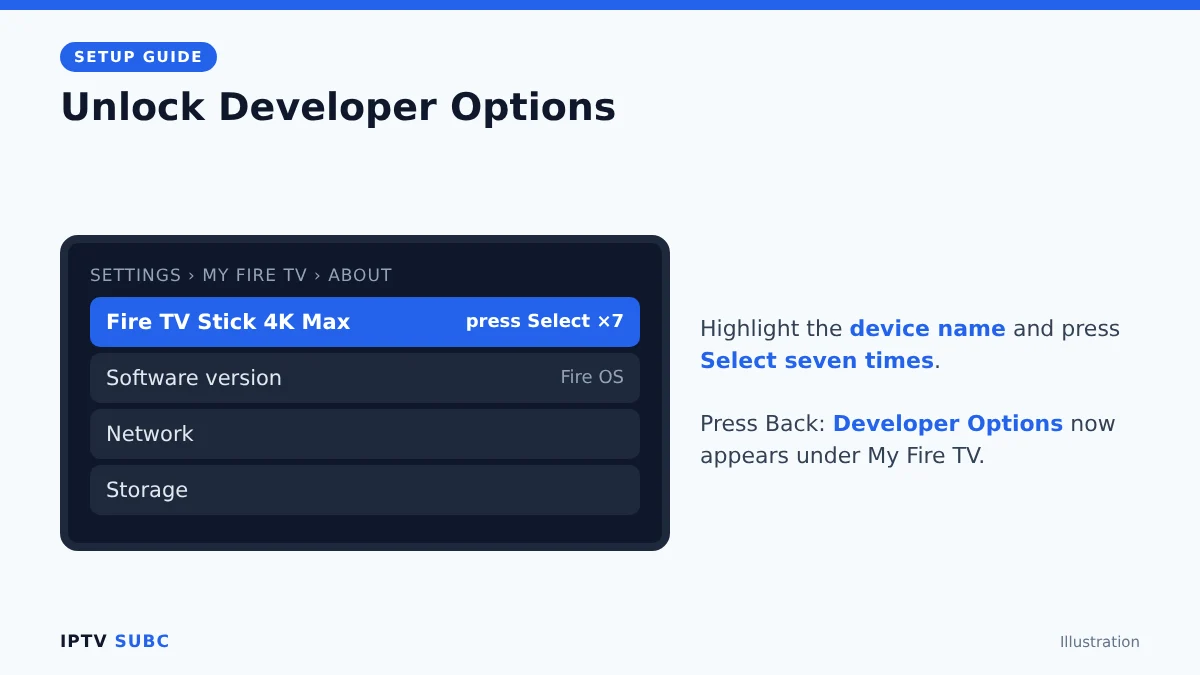
- Highlight the first line, the name of your device (for example Fire TV Stick 4K Max).
- Press the Select (centre) button 7 times quickly. A countdown appears, then a message saying you are now a developer.
- Press Back once. A new Developer Options entry now appears under My Fire TV.
If Developer Options was already visible, skip this step.
3. Allow Downloader to install apps
- Go to Settings, My Fire TV, Developer Options.
- Select Install unknown apps.
- Find Downloader in the list and switch it On.
Fire OS gives this permission app by app. Only Downloader can now install apps; every other app stays blocked. You do not need ADB debugging for Downloader, so leave it off unless another guide specifically asks for it.
4. Use Downloader on Fire TV to install your first app
- Open Downloader from Your Apps & Channels.
- Select the address bar on the Home tab.
- Type the official web address of the app you want. Newer versions also accept short number codes, but an official address is the safest choice because you can see exactly where the file comes from.
- Select Go. Downloader downloads the installer file (an .apk).
- On the install screen, select Install, then Done.
- Back in Downloader, select Delete to remove the installer file. Fire TV Sticks have little storage, so this keeps your stick fast.
New apps appear at the end of Your Apps & Channels. Highlight one, press the menu button (three lines) and choose Move to put it on your Home screen.
Ready for a player? Follow TiviMate on Fire TV or IPTV Smarters Pro on Fire TV.
Stay safe when installing apps
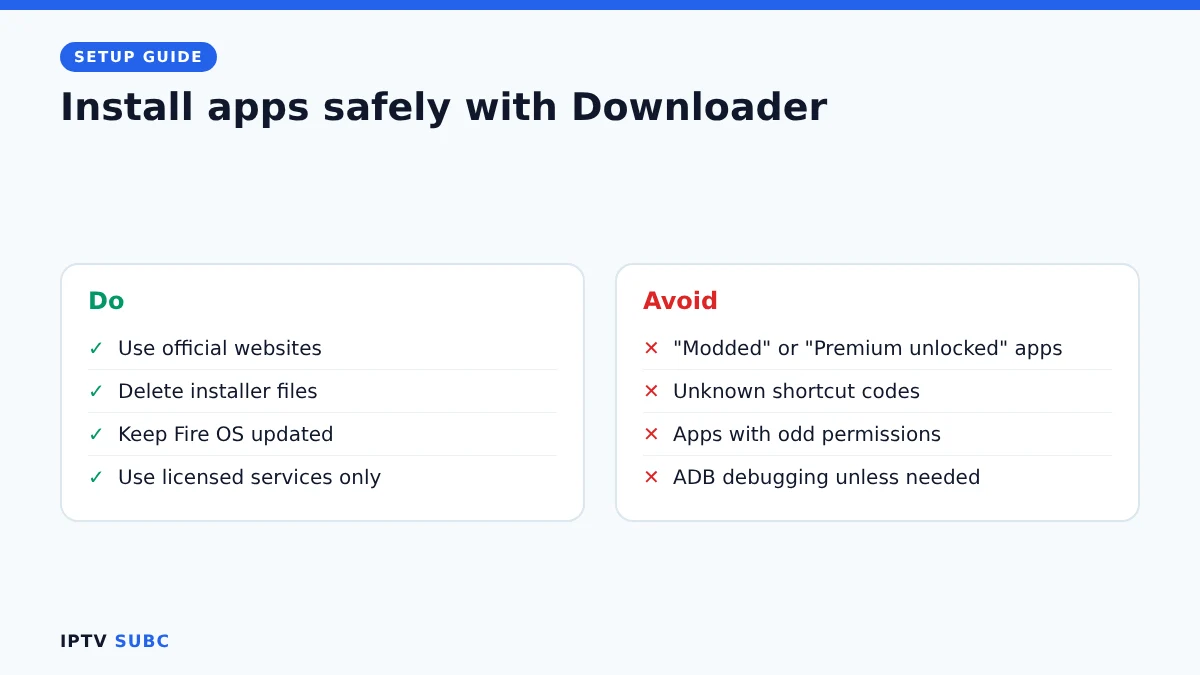
- Only enter addresses from sources you trust, ideally the app’s official website.
- Skip “modded” or “Premium unlocked” versions. They often contain malware and never receive updates.
- Be wary of apps that ask for unusual permissions or show pop-ups everywhere.
- Keep Fire OS updated under Settings, My Fire TV, About, Check for updates.
- Only use apps and services to watch content you have the right to watch.
Troubleshooting
| Problem | Fix |
|---|---|
| Downloader does not show up in search | Your device probably runs Vega OS; check Settings, My Fire TV, About |
| Developer Options is missing | Go to About and press Select 7 times on the device name |
| No Downloader entry under “Install unknown apps” | Open Downloader once first, then check again; restart if needed |
| “There was a problem parsing the package” | The file is broken or not made for Fire TV; delete it and download again from the official source |
| Download stops or install fails | Free up space: delete old .apk files in Downloader’s Files tab and uninstall unused apps |
For another walkthrough with more screenshots, see How to Install Downloader on Fire Stick on Legion Webs.
FAQ
Is Downloader free?
Yes. It is free in the Amazon Appstore, with no subscription or account.
Is Downloader legal and safe?
Downloader itself is a legal app in the official Appstore. Whether an app you install with it is safe depends on that app, so stick to official sources.
Does Downloader work on the Fire TV Stick 4K Select?
No. The 4K Select runs Vega OS, which only installs Appstore apps.
Do I need ADB debugging?
No. Downloader only needs the Install unknown apps permission.
Should I turn the permission off afterwards?
You can. Switching Downloader off under Install unknown apps blocks new installs but keeps the apps you already installed.
Next steps
Downloader is ready. Now install a player: compare the options in best IPTV player for Fire TV, or go straight to the IPTV on Firestick quick start.
As an Amazon Associate, we earn from qualifying purchases made through device links on this page.