
Key takeaway: Setting up a VPN on Fire TV is easy: VPN apps install straight from the Amazon Appstore, with no Downloader needed. Search, install, sign in, accept the connection request and pick a nearby server. It takes about five minutes.
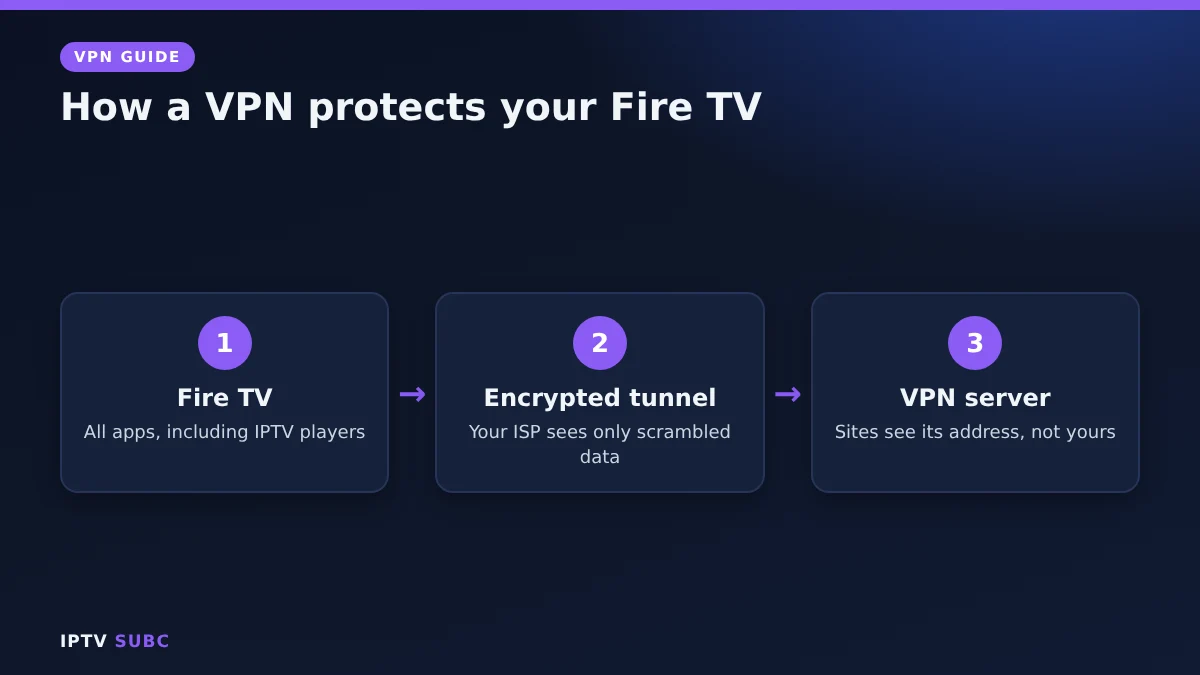
A VPN (virtual private network) sends your Fire TV’s internet traffic through an encrypted tunnel to a server run by the VPN company. As a result, your internet provider can no longer see which apps and streams you use, and websites see the VPN server’s address instead of yours. Once you install a VPN on Fire TV, every app on the stick is covered, from streaming services to IPTV players.
This guide is for first-timers. We explain why a VPN helps, how to pick one with a proper Fire TV app, every step of the setup, the best settings for streaming and how to check it really works.
Disclosure: this guide contains affiliate links. If you sign up through them, we may earn a commission at no extra cost to you.
In this guide
Why use a VPN on Fire TV?
- Privacy: your internet provider cannot log what you stream.
- Fewer evening slowdowns: some providers slow down video at busy times. Encrypted traffic cannot be singled out. Our IPTV buffering guide shows how to spot this.
- Safer public Wi-Fi: useful when you take your stick to a hotel or holiday rental.
Good to know: a VPN protects your privacy, but it cannot fix a slow IPTV server or weak Wi-Fi.
What you need
- A Fire TV device (see the Vega OS note below)
- A VPN subscription with a Fire TV app, such as NordVPN
- Your VPN login, or a phone to scan a sign-in code
- About five minutes
Step 1: Pick a VPN with a Fire TV app
Choose a VPN that has its own app in the Amazon Appstore. Avoid free VPNs from unknown companies: they often limit speed or data, and some earn money from your browsing. Before you subscribe, check the device limit and the money-back guarantee, so you can test it on your own connection.
| VPN | Fire OS app | Vega OS (4K Select) | Notes |
|---|---|---|---|
| NordVPN | Yes | Yes | QR-code sign-in |
| IPVanish | Yes | Yes | Unlimited devices, free kill switch companion app |
| Surfshark | Yes | Check the Appstore | Unlimited devices |
| Proton VPN | Yes | Check the Appstore | Has a limited free plan |
4K Select owners: this stick runs Amazon’s newer Vega OS. VPN support arrived there later, starting with NordVPN, as AFTVnews reported. If your VPN does not appear in search on a Vega OS stick, it does not support it yet.
Install and connect a VPN on Fire TV
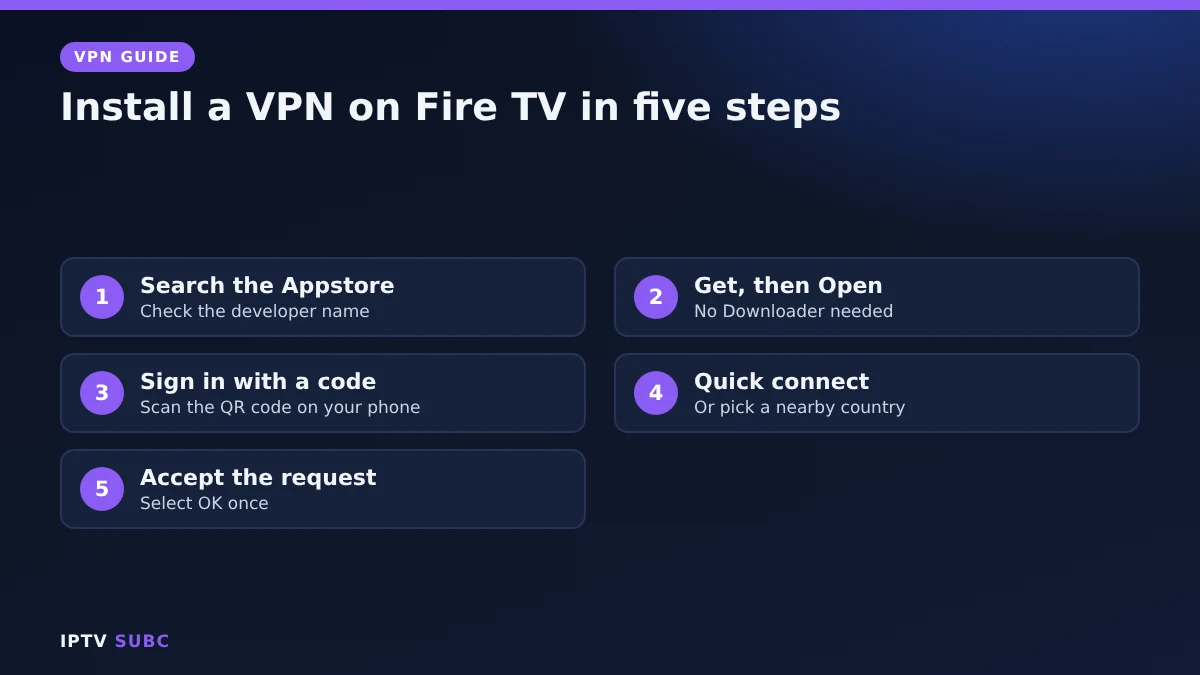
- Press Home and go to Find, then Search.
- Type the VPN’s name, or hold the voice button and say “Alexa, search for” and the name.
- Select the official app. Check that the developer name matches the VPN company.
- Select Get or Download, then Open.
- Sign in. Typing a password with a remote is slow, so many VPN apps show a QR code or short code. Scan it with your phone and the stick logs in by itself. Otherwise, use the on-screen keyboard.
- Select Quick connect, or choose a nearby country.
- The first time, Fire TV shows a Connection request. Select OK. Fire TV remembers your choice.
- Wait until the app shows Connected, then press Home and use your apps as normal.
Because the app comes from the Appstore, you do not need Downloader or Developer Options for this guide.
Best VPN on Fire TV settings for streaming
Menu names differ between apps, but most offer these options in their settings.
| Setting | Recommended | Why |
|---|---|---|
| Server location | Nearest country or city | Shorter distance means more speed |
| Protocol | WireGuard or the VPN’s own fast protocol (NordLynx on NordVPN) | Fastest on a streaming stick |
| Auto-connect | On | Protected every time the stick wakes |
| Kill switch | On, if offered | Blocks traffic if the VPN drops |
| Split tunnelling | Only if needed | Lets one app skip the VPN |
On Fire TV, kill switch support varies: NordVPN says its kill switch is not available on Fire TV, while IPVanish offers a free companion kill switch app. Turn on auto-connect either way.
Check the VPN works
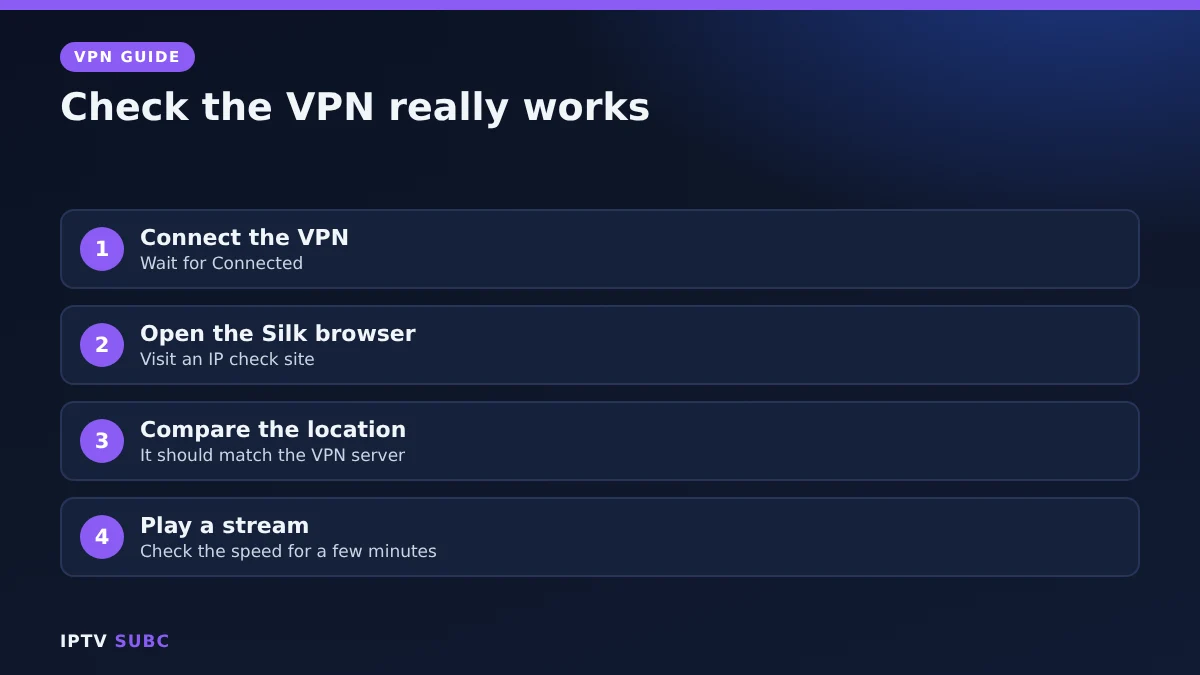
- With the VPN connected, open the Silk browser on your Fire TV.
- Visit an IP check site.
- The location shown should match your VPN server, not your home.
- Play a channel or video for a few minutes to check the speed.
Troubleshooting
| Problem | Fix |
|---|---|
| VPN app not found in search | Vega OS stick, or not offered in your Amazon account’s country |
| Streams slower with the VPN on | Choose a closer server and a WireGuard-based protocol, then compare with it off |
| An app says “VPN detected” | Use split tunnelling for that app, or disconnect while using it |
| VPN off after the stick wakes | Turn on auto-connect or “connect on start” |
| Connection request never appears | Force stop the VPN app in Settings, Applications, then open it again |
Using IPTV? See our VPN for IPTV guide for player-specific tips. Full screenshots are in How to Install a VPN on Firestick on Legion Webs.
FAQ
Do I need Downloader to install a VPN on Fire TV?
No. VPN apps are in the Amazon Appstore, so you install them like any other app.
Is there a free VPN for Fire TV?
A few reputable free plans exist, with limits on speed, locations or data. For daily streaming, a paid plan is usually faster and more reliable.
Does a VPN slow down Fire TV?
A little, because of encryption and the extra distance. With a nearby server and a fast protocol, most people do not notice.
Can one VPN plan cover my TV and phone?
Yes, within the plan’s device limit. IPVanish and Surfshark allow unlimited devices; NordVPN covers up to 10.
Should I keep the VPN on all the time?
You can. With auto-connect on, it protects everything without you thinking about it.
Next steps
Pair your VPN with your IPTV player in the VPN for IPTV guide, then make streams smoother with our IPTV buffering fixes.
Free download
Firestick + IPTV Setup Checklist
Two printable pages: install, login, the settings that make it faster and quick fixes for buffering and an empty guide.
We’ll send occasional new guides. No spam, unsubscribe any time. Privacy