
Key takeaway: A VPN for IPTV encrypts your traffic so your internet provider cannot see or slow it. It cannot fix a bad IPTV server and costs a little speed.
IPTV streams travel over your normal internet connection. Without a VPN, your provider can see which servers you stream from and how much video you watch. In addition, some providers slow down heavy video traffic in the evening. A VPN wraps that traffic in encryption, so it looks like any other data.
This guide helps you decide whether you actually need a VPN for IPTV, explains what it can and cannot do, and shows how to set it up on Fire TV with the settings that keep live channels smooth. For a refresher on the basics, see how a VPN works.
Disclosure: this guide contains affiliate links. If you sign up through them, we may earn a commission at no extra cost to you.
In this guide
Do you need a VPN for IPTV?
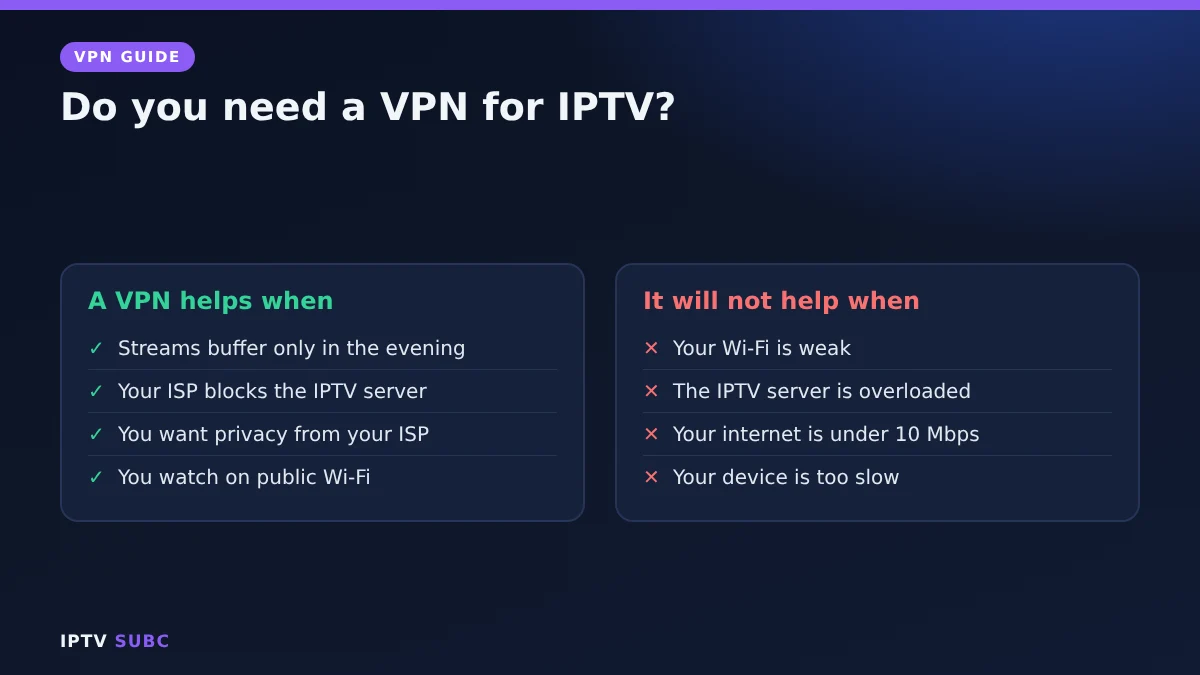
| Your situation | VPN helpful? |
|---|---|
| Streams buffer every evening but are fine during the day | Yes: this often means throttling |
| Your internet provider blocks the IPTV server, so nothing loads | Yes: the VPN routes around the block |
| You want privacy from your provider | Yes |
| You watch on hotel or public Wi-Fi | Yes |
| Streams are already smooth and privacy is not a concern | Optional |
| Your internet is very slow (under 10 Mbps) | It may make things worse |
What it cannot do
- It does not fix a bad IPTV server. If the provider’s server is overloaded, the VPN cannot help.
- It does not add speed beyond your plan. It can only stop your provider from slowing you down.
How to tell if your provider throttles IPTV
Throttling has a typical pattern. Run a speed test on your TV device in the evening: if it looks fine, yet IPTV buffers every night while YouTube plays smoothly, your provider may be slowing video traffic. Turn on the VPN and compare for a few evenings. If streams become smooth, throttling was the cause. If nothing changes, look at Wi-Fi or the provider instead, using our IPTV buffering fixes.
Set-up on Fire TV
- Install a VPN from the Amazon Appstore. NordVPN, IPVanish, Surfshark, ExpressVPN and Proton VPN all have Fire TV apps; compare them in best VPN for Fire TV.
- Sign in and turn on auto-connect, so the VPN is always on before your IPTV app opens.
- Connect to a server in your own country, close to you.
- Open your IPTV player, such as TiviMate or IPTV Smarters, and play a channel.
For a full walkthrough with one provider, see NordVPN on Fire TV.
Settings for smooth streams
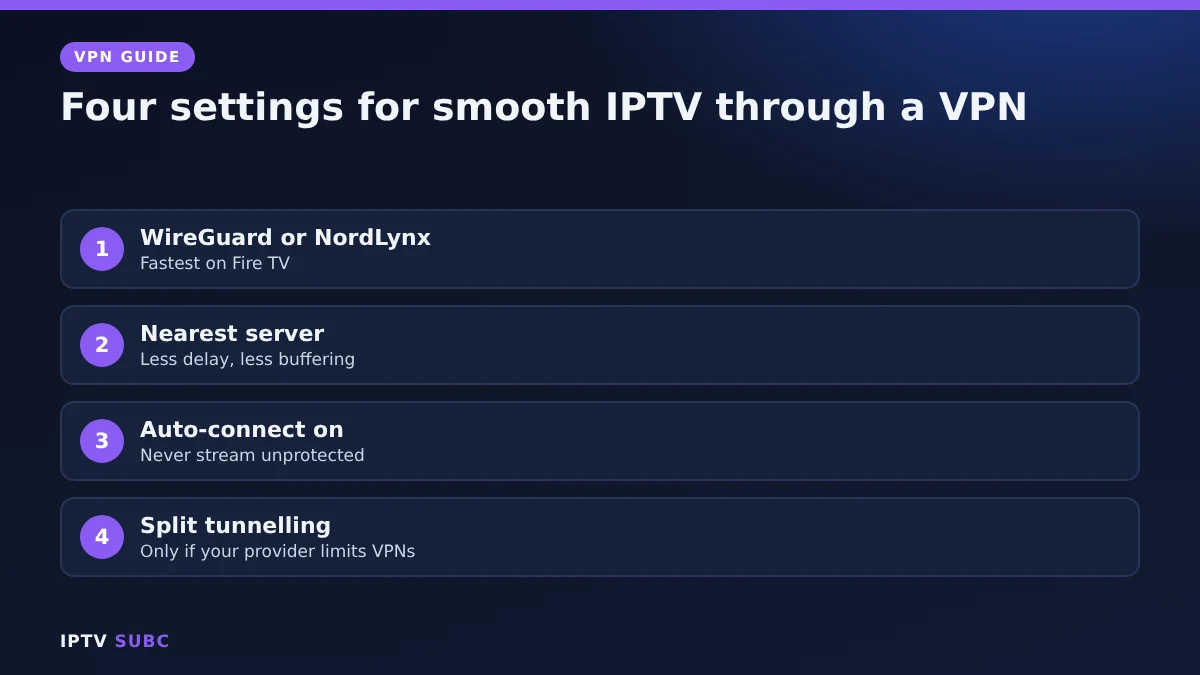
- Protocol: WireGuard or NordLynx, the fastest options on a Fire TV.
- Server: the nearest one, since a faraway server adds delay and buffering.
- Auto-connect: on, so you never stream unprotected by accident.
- Split tunnelling: if your IPTV provider limits VPN connections, exclude only the apps that need it and keep the VPN on for the rest.
Quick fixes
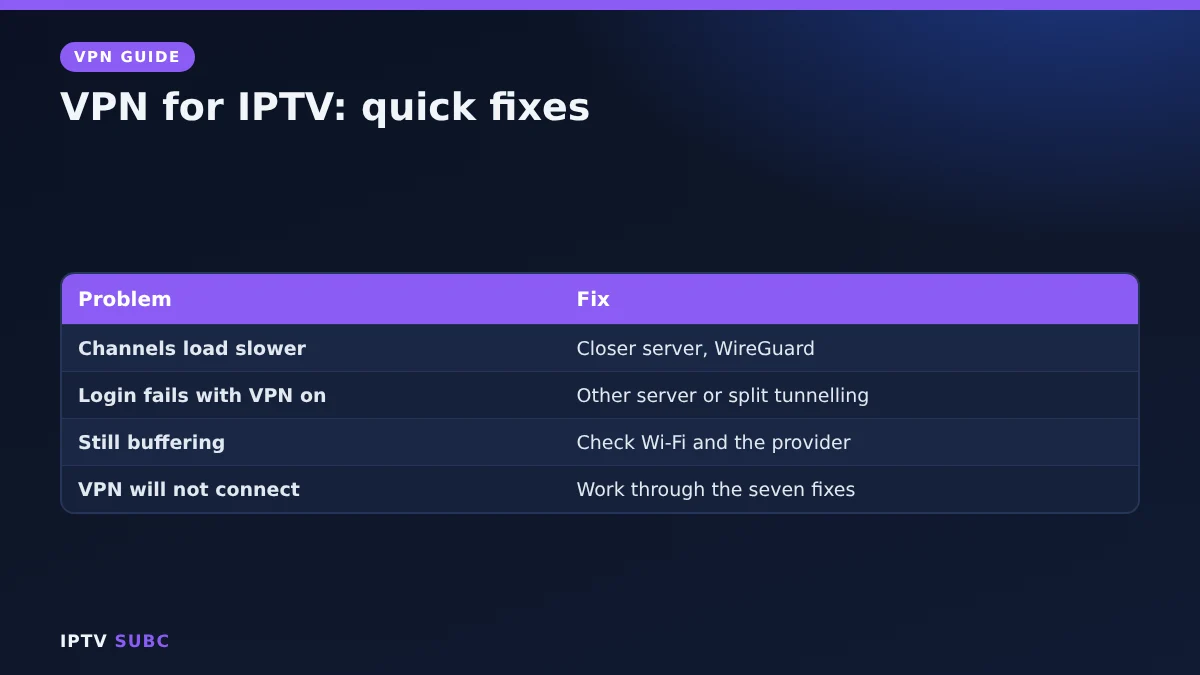
| Problem | Fix |
|---|---|
| Channels load slower with the VPN | Switch to a closer server and a WireGuard-based protocol |
| IPTV login fails only with the VPN on | Try another server, or exclude the player with split tunnelling |
| Buffering continues with the VPN on | The problem is likely Wi-Fi or the IPTV server; see the buffering fixes |
| VPN will not connect at all | See Fire TV VPN not working |
The original lesson is VPN for IPTV on Legion Webs.
FAQ
Will a VPN stop buffering?
Only when your internet provider is slowing down video. If buffering comes from weak Wi-Fi or a busy IPTV server, fix those first.
Can I use a free VPN instead?
Usually not. Most free VPNs have data caps or slow servers. Proton VPN’s free plan has no data cap, but for daily IPTV a paid plan is more reliable.
Does the VPN go on the TV or the router?
On the TV device is easiest. A router VPN covers every device but is slower and harder to set up.
Will my provider know I use IPTV?
With a VPN on, your internet provider sees only encrypted traffic to the VPN server.
Next steps
Add a TV guide that works with IPTV guide fixes, or check your speed needs with IPTV speed requirements.