
Key takeaway: When your IPTV guide is not working, look at what it shows first. Fully empty means the guide never downloaded or the link is wrong. Times off by hours need the EPG time shift. A few blank channels need matching. A guide that empties after a day or two needs automatic updates.
When the TV guide breaks, channels usually still play, but you see “No information” instead of show names. Reminders, recordings and catch-up stop working too, because they all rely on the guide.
The good news: guide problems almost always have one of a handful of causes, and each has a simple fix. This guide explains what the TV guide is, how to read the symptom and which of the seven fixes to use. It assumes you added a guide at least once; if not, start with your player’s setup guide.
In this guide
What the IPTV guide (EPG) actually is
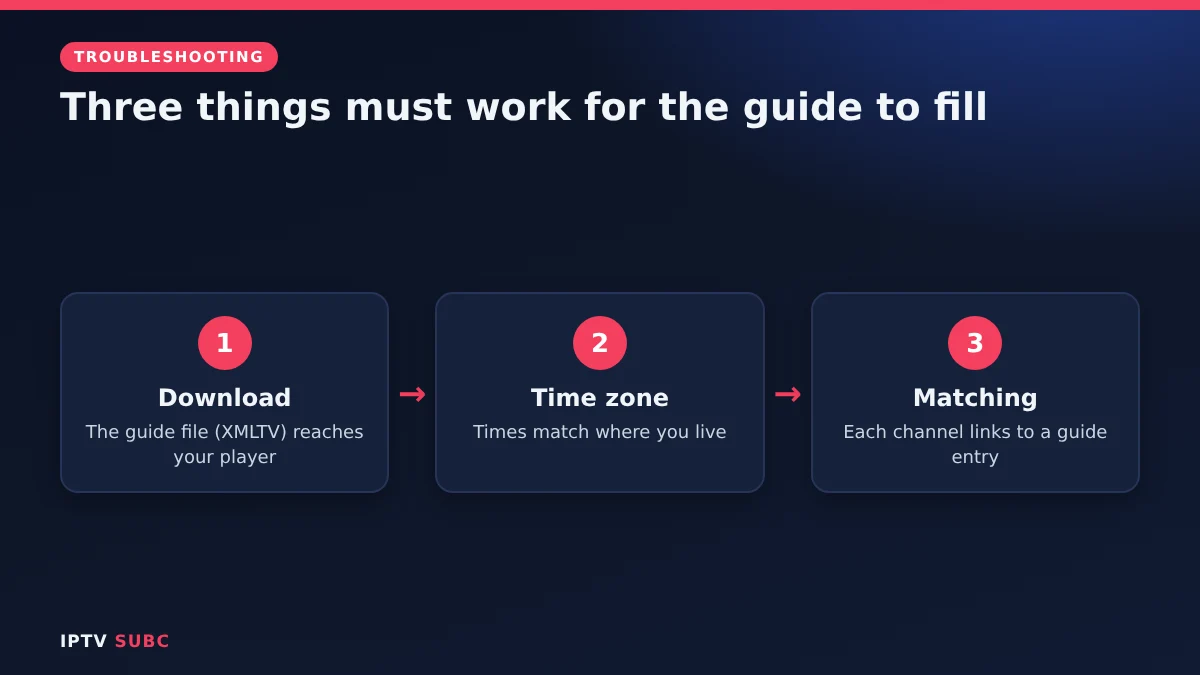
EPG stands for Electronic Programme Guide. It is a separate file from your channel list, usually in a format called XMLTV, that lists every show with its start and end time. Your player downloads this file and matches each entry to a channel using an ID.
So a working guide needs three things: the file must download, the times must match your time zone, and each channel must be matched to the right entry. When your IPTV guide is not working, one of those three has failed.
IPTV guide not working: symptom to fix
| What you see | Likely cause | Fix |
|---|---|---|
| “No information” everywhere | Not downloaded, wrong link or broken cache | 1, 2, 3 |
| Shows off by an hour or more | Time zone mismatch | 4 |
| A few channels blank | Not matched to a guide entry | 5 |
| Fine, then empty after a day or two | Automatic updates off | 6 |
| Download stuck at 0% | Connection or blocked address | 7 |
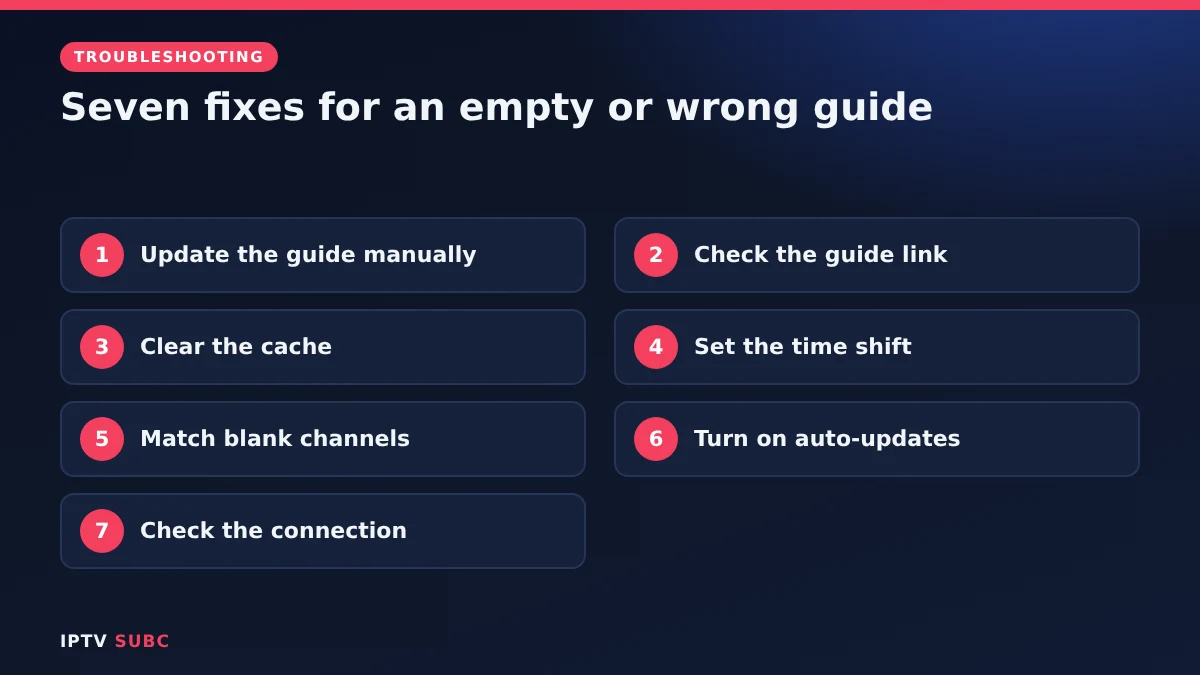
Fix 1: Update the guide manually
Most players only download the guide on a schedule, so a fresh manual update often solves everything.
- TiviMate: Settings, EPG, then update now.
- IPTV Smarters Pro: Install EPG, or refresh from the main screen.
- OTT Navigator: refresh the playlist’s EPG in its settings.
Keep the app open until the update reaches 100%. Large guides can take a minute or two on a streaming stick.
Fix 2: Check the guide link
Compare the EPG address in the player with the one in your provider’s email. One wrong letter breaks it. With an Xtream Codes login, the guide comes built in, so remove any old external EPG link that might override it. Not sure which login you use? See M3U vs Xtream Codes.
Fix 3: Clear the cache
Go to your device’s app settings, choose the player and select Clear cache (not Clear data, which deletes your login). Reopen the player and update the guide again. Also check the device has free storage, because a full stick cannot save a large guide file.
Fix 4: Fix the time shift
If shows appear but at the wrong time, the guide’s time zone does not match yours.
- Find a show whose real start time you know, such as the evening news.
- Count how many hours the guide is off.
- Open the player’s EPG settings and enter that number as the time shift: plus if the guide runs behind, minus if it runs ahead.
- Check again after daylight-saving changes, which can shift everything by an hour.
Fix 5: Fill blank channels
When only a few channels are empty, they are usually not matched to a guide entry. TiviMate and some other players let you pick a guide entry for a channel by hand. New or regional channels may simply be missing from the provider’s guide data, so report them to support. Film and series categories never have guide data, which is normal.
Fix 6: Turn on automatic updates
If the guide works and then empties after a day or two, it is running out of data. Set automatic updates to once a day or on app start, and avoid force-closing the app while an update is running.
Fix 7: Check the connection
Confirm your internet works, then restart the device and the router. Some internet providers or networks block the guide’s address; a VPN can help test that. If nothing works, the provider’s guide server may simply be down for a while.
Player or provider?
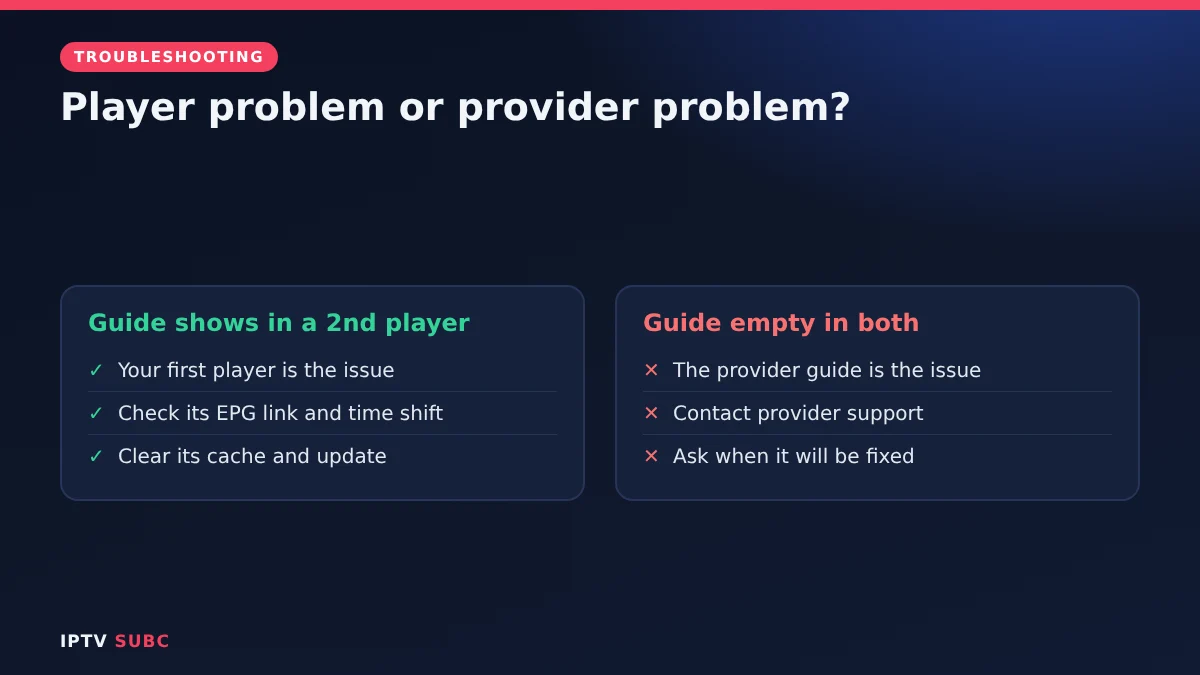
Load the same login in a second player, for example IPTV Smarters if you use TiviMate. If the guide is empty there too, the provider’s guide is the problem, and only their support can fix it. If the second player shows the guide, the issue is your first player’s settings or cache. Our best IPTV player for Fire TV guide lists good second players.
For a broader walkthrough of adding a guide, see How to Add EPG to IPTV on Legion Webs.
Providers often list their own guide fixes too; the 4K Flix IPTV troubleshooting page is one example.
FAQ
Why is my IPTV guide not working after an update?
App updates sometimes reset guide settings or the cache. Check the guide link and run a manual update.
Why are guide times off by exactly one hour?
Usually daylight-saving time. Adjust the EPG time shift by one hour.
Do film and series sections have a guide?
No. Only live channels have guide data.
Will clearing the cache delete my channels?
No. Clear cache keeps your login. Clear data is the option that deletes it.
How often should the guide update?
Once a day is enough for most providers.
Next steps
Fixed the guide but streams still stutter? Work through IPTV buffering fixes. Setting up a new player? See TiviMate on Fire TV.
Free download
Firestick + IPTV Setup Checklist
Two printable pages: install, login, the settings that make it faster and quick fixes for buffering and an empty guide.
We’ll send occasional new guides. No spam, unsubscribe any time. Privacy