
Key takeaway: When your Fire TV storage is full, apps lag, installs fail and IPTV players freeze. Check free space under Settings, Applications, Manage Installed Applications, then clear app caches, delete old installer files in Downloader and uninstall apps you never use.
Fire TV Sticks have far less storage than a phone, and only part of it is free for your apps once the system takes its share. As a result, a stick that ran perfectly when new can slow down after a few months of updates, app installs and leftover files.
This guide explains how to check your Fire TV storage, what is safe to delete, the difference between clearing cache and clearing data, and simple habits that keep your IPTV player fast. Every step uses the built-in settings, so no extra apps are needed.
In this guide
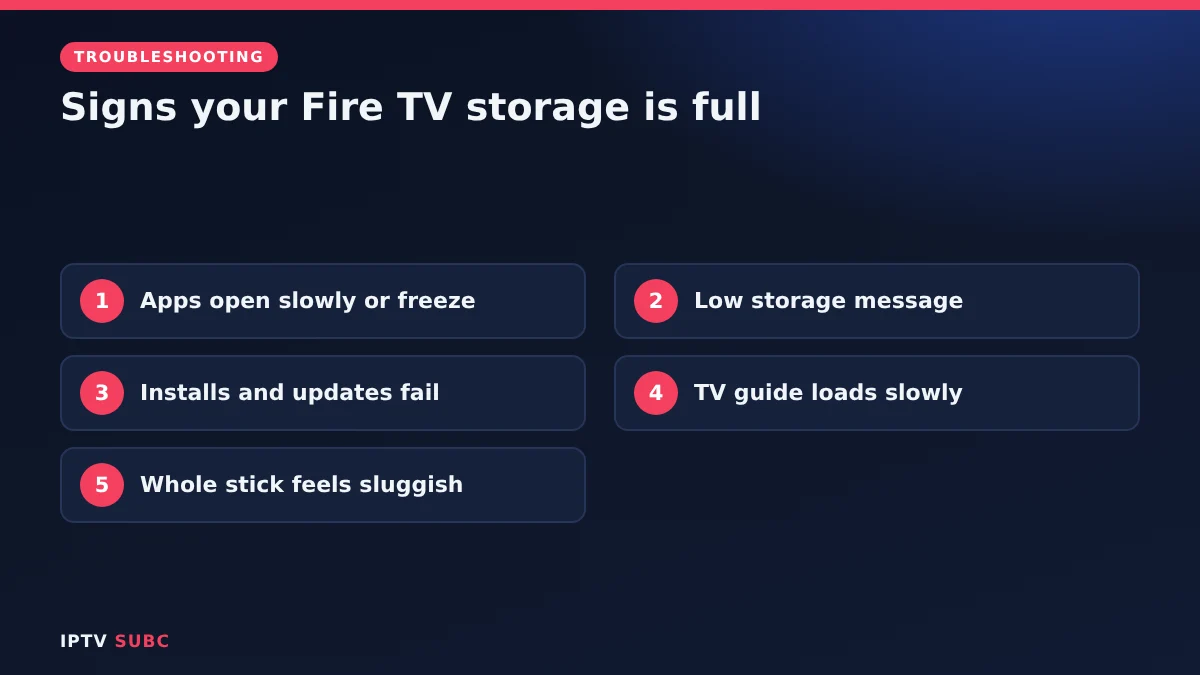
Signs your Fire TV storage is full
- Apps take longer to open or freeze.
- An “insufficient storage” or low storage message appears.
- New apps or updates fail to install.
- The TV guide in your IPTV player loads slowly or empties.
- The whole stick feels sluggish, not just one app.
How much storage a Fire TV has
Storage depends on the model, and the system uses a large part of it. SlashGear notes that an 8 GB Fire TV Stick leaves only about 4.5 to 5.5 GB for your own apps, while the Fire TV Cube has 16 GB. Newer models such as the Fire TV Stick 4K Max (2nd gen) also have more space, but IPTV guides, caches and installer files can still fill it over time.
Step 1: Check your free space
- Open Settings.
- Select Applications, then Manage Installed Applications.
- The remaining internal storage appears on the right, and each app shows its size when you highlight it.
You can also see a storage summary under Settings, My Fire TV, About, Storage on many models. As a rule of thumb, try to keep at least 1 GB free.
Step 2: Clear the cache of big apps
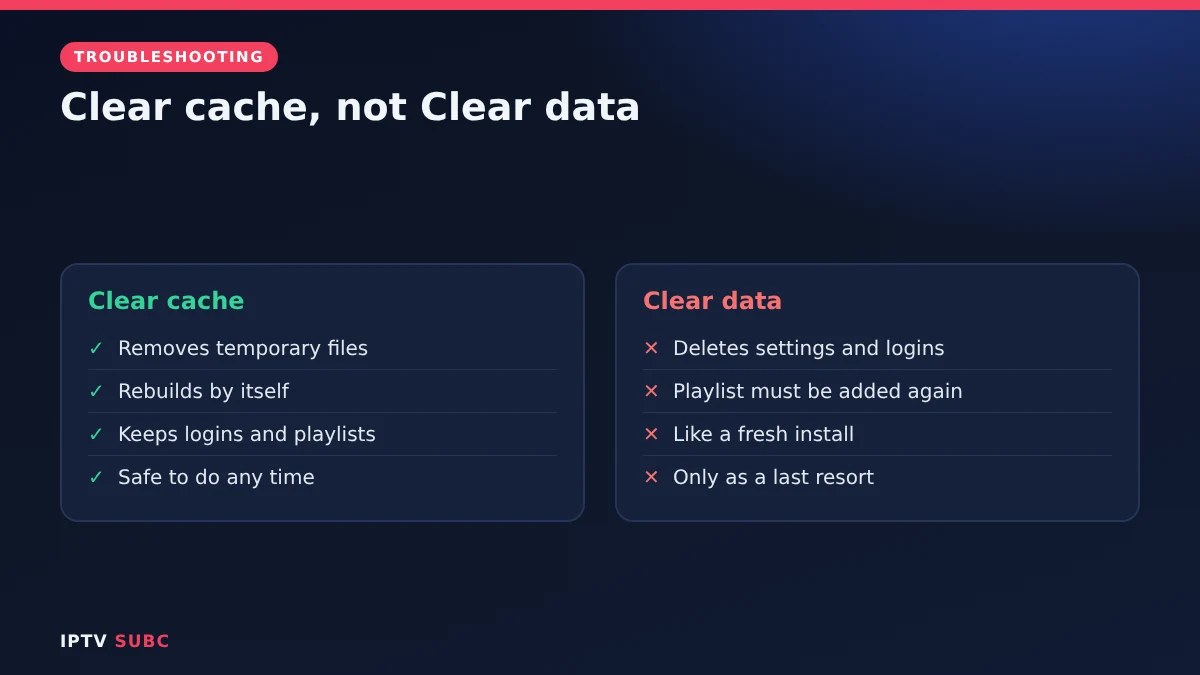
Cache is temporary data apps keep to load faster. It rebuilds itself, so clearing it is safe.
- In Manage Installed Applications, select a large app, such as your IPTV player or a streaming app.
- Select Force stop, then Clear cache.
- Repeat for other large apps.
Important: do not choose Clear data unless you want to start over. It deletes the app’s settings and logins, so in an IPTV player you would need to add your playlist again.
Step 3: Delete old installer files
If you install apps with Downloader, each one leaves an installer file (.apk) behind unless you deleted it.
- Open Downloader.
- Go to the Files tab.
- Select each old .apk file and choose Delete.
New to Downloader? See Downloader on Fire TV, which shows how to delete files right after each install.
Step 4: Uninstall apps you never use
- In Manage Installed Applications, highlight an app you no longer use.
- Select Uninstall and confirm.
Start with games, which are usually the largest, and apps you installed once to try. You can always reinstall them later.
Step 5: Restart the stick
Finally, go to Settings, My Fire TV, Restart. A restart clears temporary memory and often makes the freed space felt immediately.
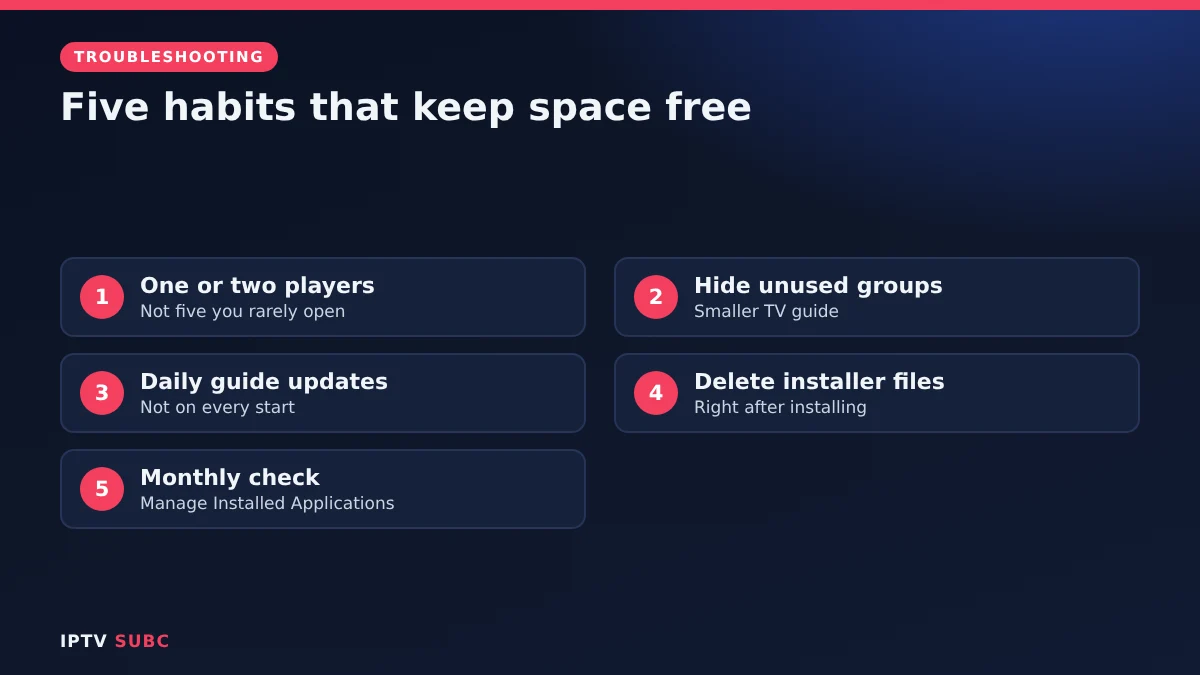
Habits that keep it fast
- Keep one or two IPTV players, not five you rarely open.
- Hide unused channel groups in your player, which shrinks the guide it stores.
- Set the guide to update once a day, not on every app start.
- Delete installer files straight after each install.
- Check storage monthly when you check for updates.
Troubleshooting
| Problem | Fix |
|---|---|
| Still low after clearing caches | Uninstall large unused apps, especially games |
| Player lost its playlist | You chose Clear data; add your login again |
| Storage fills again quickly | Reduce guide update frequency and hide unused groups |
| Updates still fail | Free at least 1 GB, then restart and retry |
| Whole stick still slow | Check speed too: see speed test on Fire TV |
Still sluggish after everything? An older stick may simply be outgrown; the Fire TV Stick 4K Max has more memory and storage for large playlists. For more detail on storage sizes, see SlashGear’s Fire TV storage guide.
FAQ
Is clearing cache safe on Fire TV?
Yes. Cache rebuilds itself. Only Clear data removes settings and logins.
How much free space should I keep?
At least 1 GB, so updates and guides have room.
Can I add a USB drive for more storage?
Some models support external storage through an adapter, but not all; check your model before buying anything.
Will a factory reset free space?
Yes, but it deletes everything. Try the steps above first.
Why does my IPTV player use so much space?
Large TV guides and caches. Hiding unused groups and daily guide updates keep it smaller.
Next steps
Faster now? Make sure the connection keeps up with a speed test on Fire TV, or work through the IPTV buffering fixes.
As an Amazon Associate, we earn from qualifying purchases made through device links on this page.