
Key takeaway: Fire TV overheating usually comes from poor airflow behind the TV, a weak USB power source or heavy apps running for hours. Unplug it to cool, use the HDMI extender and the original wall adapter, and clear the cache of demanding apps.
A streaming stick packs a small computer into a space the size of a lighter, then hides it behind a warm TV. So it is normal for a Fire TV Stick to feel warm after a long evening of live sport. However, when it gets too hot, it slows down, freezes, shows temperature warnings or restarts by itself, and IPTV is often the first thing to suffer.
This guide explains the warning signs of Fire TV overheating, why it happens and the simple, safe fixes. No tools or technical knowledge needed.
In this guide
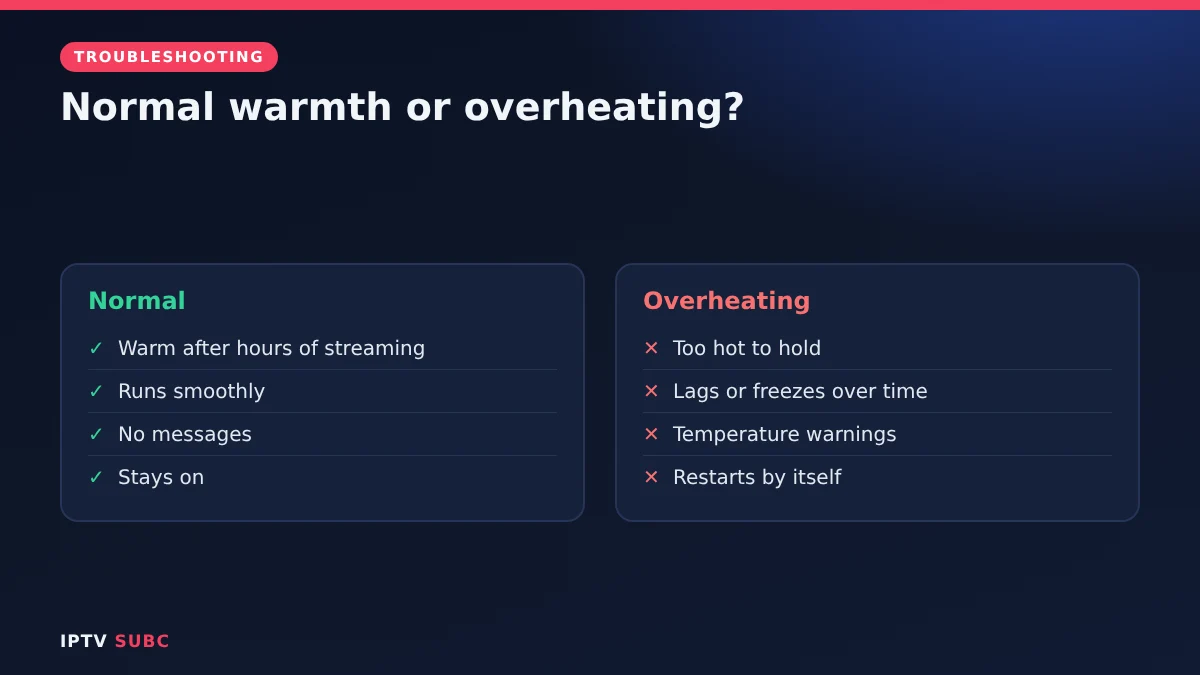
Normal warmth or overheating?
| Normal | Overheating |
|---|---|
| Warm to the touch after hours of streaming | Too hot to hold comfortably |
| Runs smoothly | Lags, freezes or stutters after a while |
| No messages | Temperature warnings on screen |
| Stays on | Restarts or switches off by itself |
According to Asurion’s Fire TV overheating guide, some warmth during a long streaming session is normal. In contrast, repeated shutdowns, a burning smell, visible damage or a device that is painfully hot mean you should stop using it and unplug it.
What causes Fire TV overheating
- Poor airflow. A tight space behind a wall-mounted TV, a closed cabinet or a spot next to other electronics traps heat.
- The TV’s own heat. The back of a TV is warm, and the stick sits right against it.
- Unstable power. A TV’s USB port may not supply the steady power the stick expects, which can cause heat and instability.
- Heavy use. Hours of HD or 4K streaming, several apps running at once or updates in the background all work the processor hard.
- Software problems. A misbehaving app can keep the processor busy even when you are not using it.
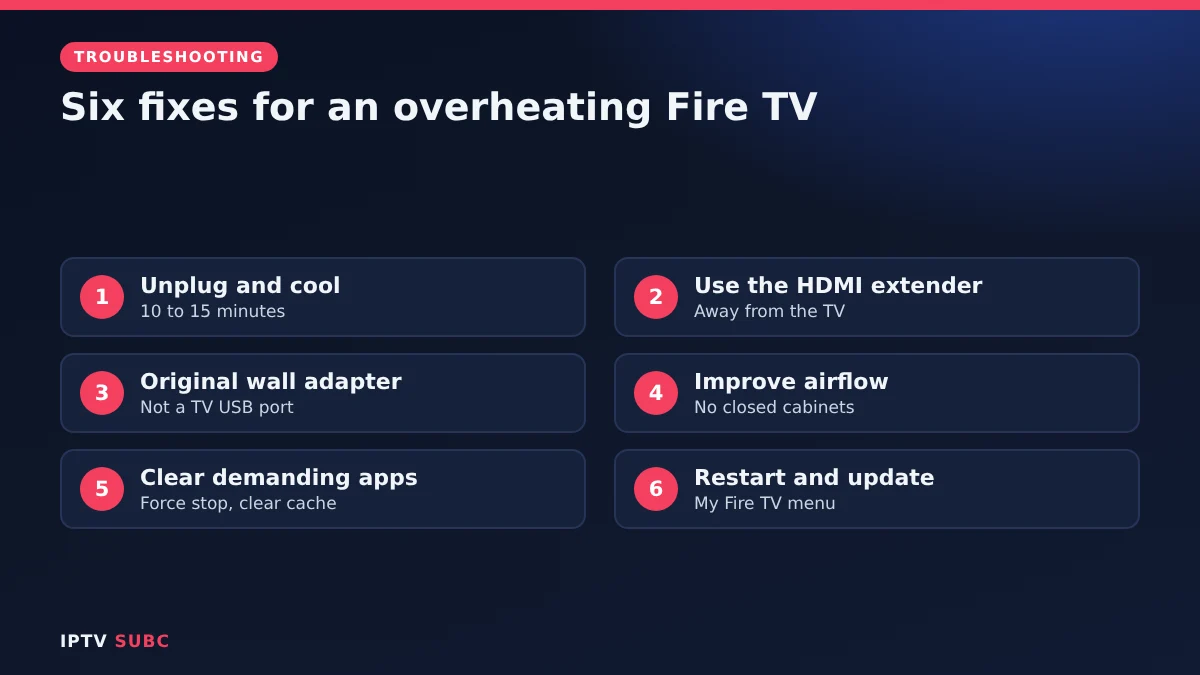
How to fix Fire TV overheating
Fix 1: Unplug and let it cool
Stop streaming, unplug the power and wait until the stick is completely cool, ideally 10 to 15 minutes. Then plug it back in.
Fix 2: Use the HDMI extender
The short HDMI extender in the box moves the stick away from the back of the TV, where air can circulate. As a bonus, it also improves Wi-Fi reception.
Fix 3: Use the original wall adapter
Power the stick from the Amazon wall adapter and cable that came with it, not a USB port on the TV. Steady power keeps it stable.
Fix 4: Improve the space around it
Make sure nothing covers the stick, keep it away from heaters and direct sunlight, and avoid closed cabinets with no ventilation.
Fix 5: Close and clear demanding apps
Go to Settings, Applications, Manage Installed Applications, select an app that seems to cause trouble, then Force stop and Clear cache. Freeing storage also helps; see Fire TV storage full.
Fix 6: Restart and update
Restart under Settings, My Fire TV, Restart. Then check Settings, My Fire TV, About, Check for updates, because updates often fix performance bugs.
Why overheating causes IPTV buffering
When a stick gets too hot, it protects itself by slowing down its processor. Live IPTV needs steady processing to decode video, so the first symptom is often stuttering, dropped frames or buffering, even though your internet is fine. Therefore, if streams start smoothly and then degrade after an hour, heat is a likely cause. Our IPTV buffering fixes cover the other causes.
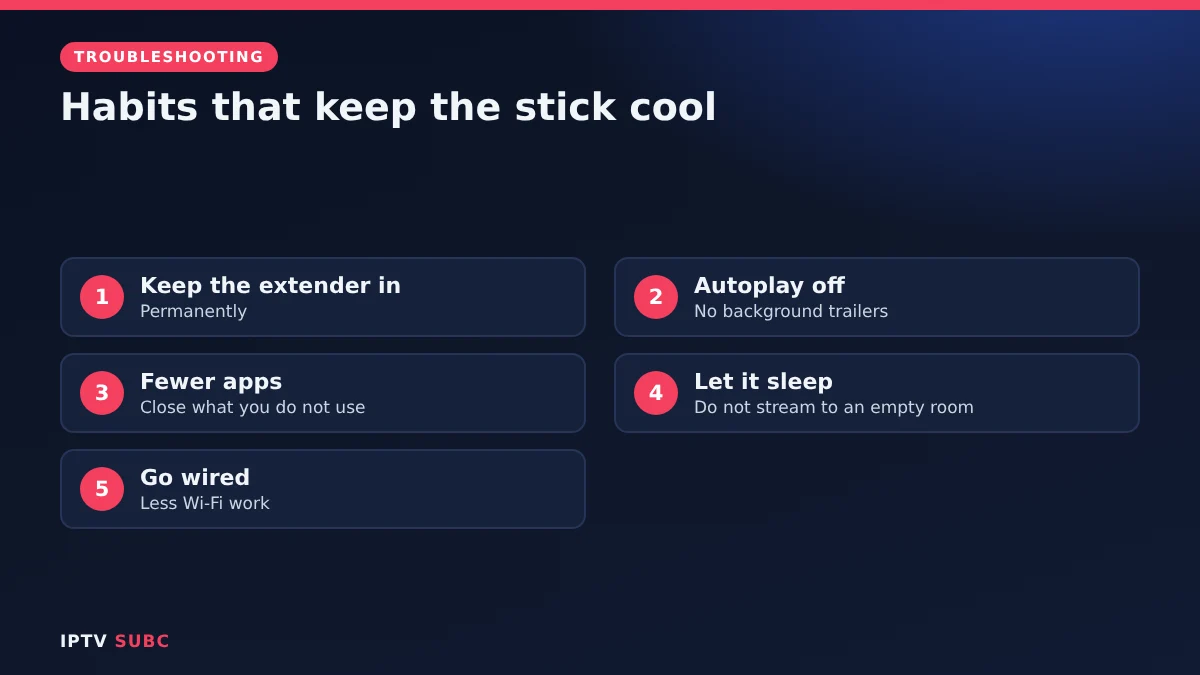
Prevent it happening again
- Leave the extender in place permanently.
- Turn off autoplay under Settings, Preferences, Featured Content, so trailers do not run in the background.
- Keep one or two players, and close apps you are not using.
- Let it sleep: do not leave a channel playing for hours when nobody is watching.
- Consider a cable: a wired connection with an Ethernet adapter reduces Wi-Fi work; see Fire TV Ethernet adapter.
When to replace the stick
If your stick still overheats after all these fixes, smells of burning or shows damage, stop using it. Older sticks may simply struggle with today’s apps and 4K streams; a newer model such as the Fire TV Stick 4K Max handles long sessions better. If it is still under warranty, contact Amazon support.
FAQ
Is it normal for a Fire TV Stick to get warm?
Yes, some warmth during long streaming is normal. Too hot to hold, warnings or restarts are not.
Does a fan help?
Generally you should not need one. Better airflow and the HDMI extender are usually enough.
Can overheating damage my Fire TV?
Repeated overheating can shorten its life, so fix the cause rather than ignoring warnings.
Why does my stick overheat only with IPTV?
Long live streams in HD or 4K keep the processor busy for hours. Use the fixes above and close other apps.
Is the TV’s USB port fine for power?
Often not. Use the original wall adapter for steady power.
Next steps
Clear space with Fire TV storage full, then check your connection with a speed test on Fire TV.
As an Amazon Associate, we earn from qualifying purchases made through device links on this page.