
Key takeaway: To run a speed test on Fire TV, open Settings, Network, highlight your connection, press Play/Pause and select Run Speed Test. Test on the TV device itself, in the evening, because that is the speed your IPTV player actually gets.
When streams buffer, the first question is always “how fast is my internet?” Most people answer it with a speed test on their phone, next to the router, at lunchtime. Unfortunately, that number says very little about what your Fire TV Stick gets behind the TV at 9 pm.
This guide shows two easy ways to run a speed test on Fire TV, explains what each number means in plain English and tells you what speed IPTV really needs. No apps to sideload, and no technical knowledge needed.
In this guide
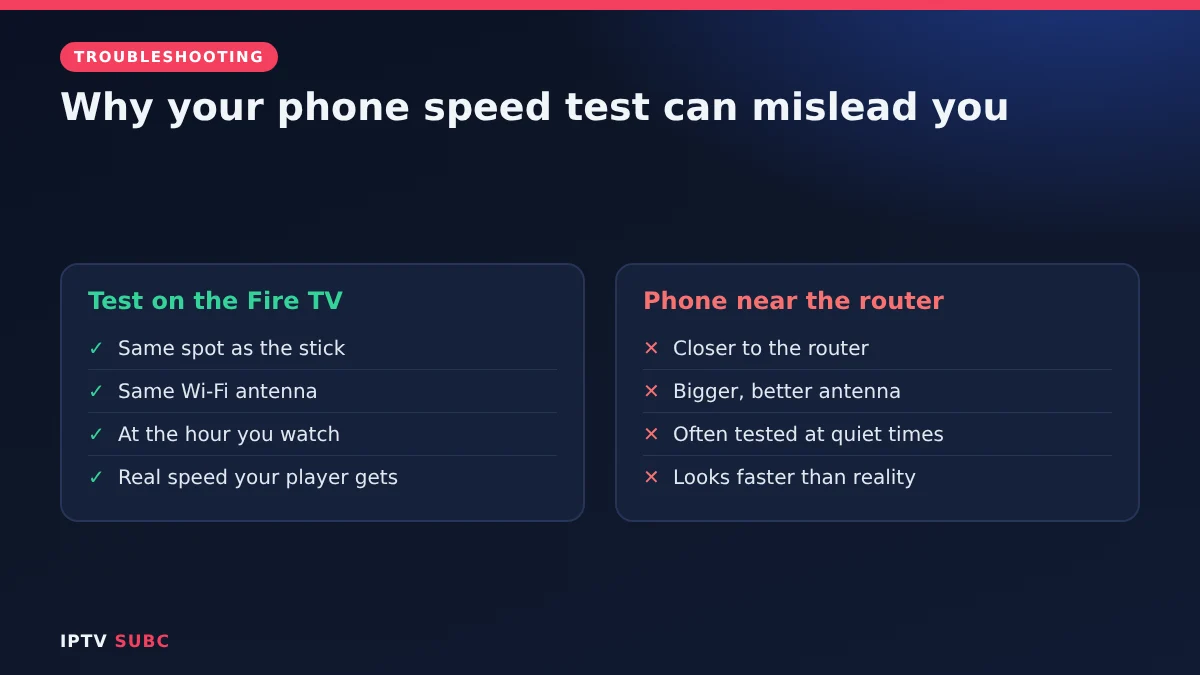
Why test on the TV, not your phone
- Distance and walls: your phone may sit next to the router, while the stick hides behind a TV that blocks the signal.
- Different Wi-Fi hardware: a streaming stick has a smaller antenna than a modern phone.
- Time of day: evening traffic slows many connections, and that is when most people watch.
As a result, only a test on the Fire TV itself, at the time you usually watch, tells you the truth.
Method 1: the built-in speed test
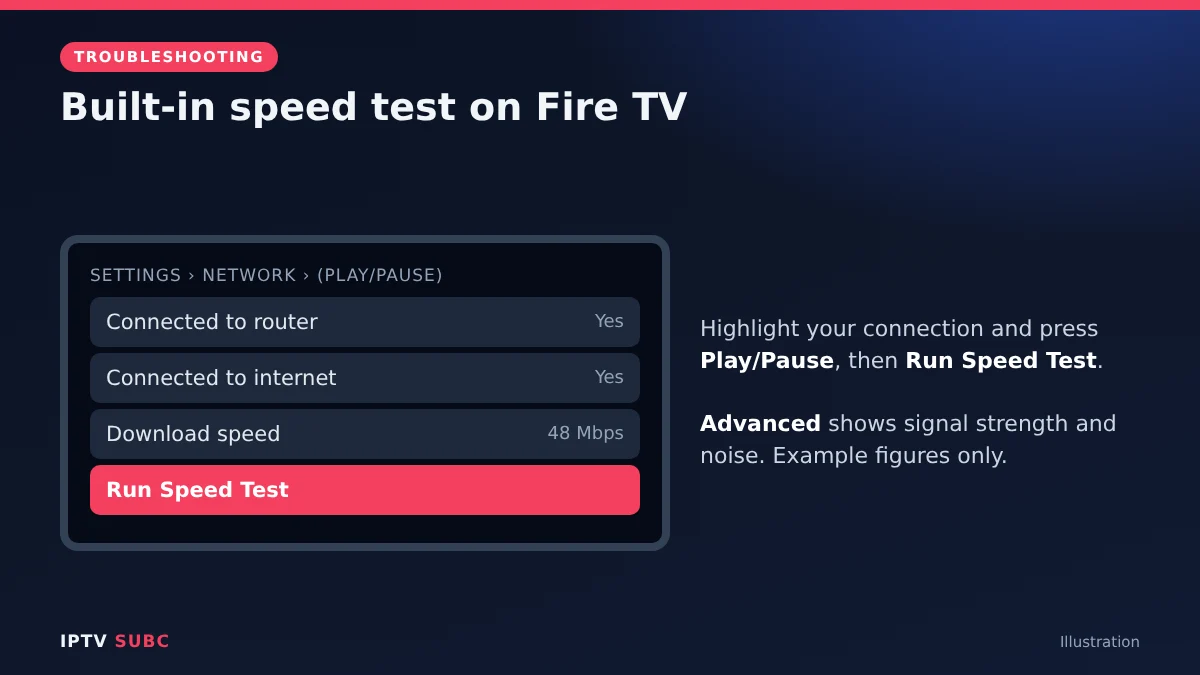
Fire TV has a network tool built in. Amazon describes it as the Fire TV Network Status tool, and on compatible devices it includes a download speed test. As AFTVnews explains:
- Press Home and open Settings (the gear icon).
- Select Network.
- Highlight your Wi-Fi or Ethernet connection and press Play/Pause on the remote.
- Select Run Speed Test. Your download speed appears after a few seconds.
- Optionally, select Advanced to see signal quality details such as signal strength and noise.
The same screen also tells you whether the stick is connected to your router and whether the router is connected to the internet, which is handy when nothing loads at all.
Method 2: a speed test site in Silk
If your device does not show the speed test button, use the browser instead:
- Open the Silk browser (search for it if it is not on your Home screen).
- Visit a speed test website.
- Start the test and wait for the result.
This method works on every Fire TV, but browser tests on a small stick can read slightly lower than the built-in tool.
How to read the results
| Result | What it means for IPTV |
|---|---|
| Under 5 Mbps | SD only; expect buffering on HD channels |
| 10 to 15 Mbps | Comfortable for one Full HD stream |
| About 25 Mbps or more | Enough for 4K on one screen |
| Big swings between tests | Wi-Fi is unstable; steadiness matters more than peak speed |
Remember to add up all screens watching at the same time. Our guide to IPTV speed requirements explains how to work out a household number. As a benchmark, Netflix recommends 5 Mbps for Full HD and 15 Mbps for 4K in its speed guide; live IPTV needs more headroom because it cannot download far ahead.
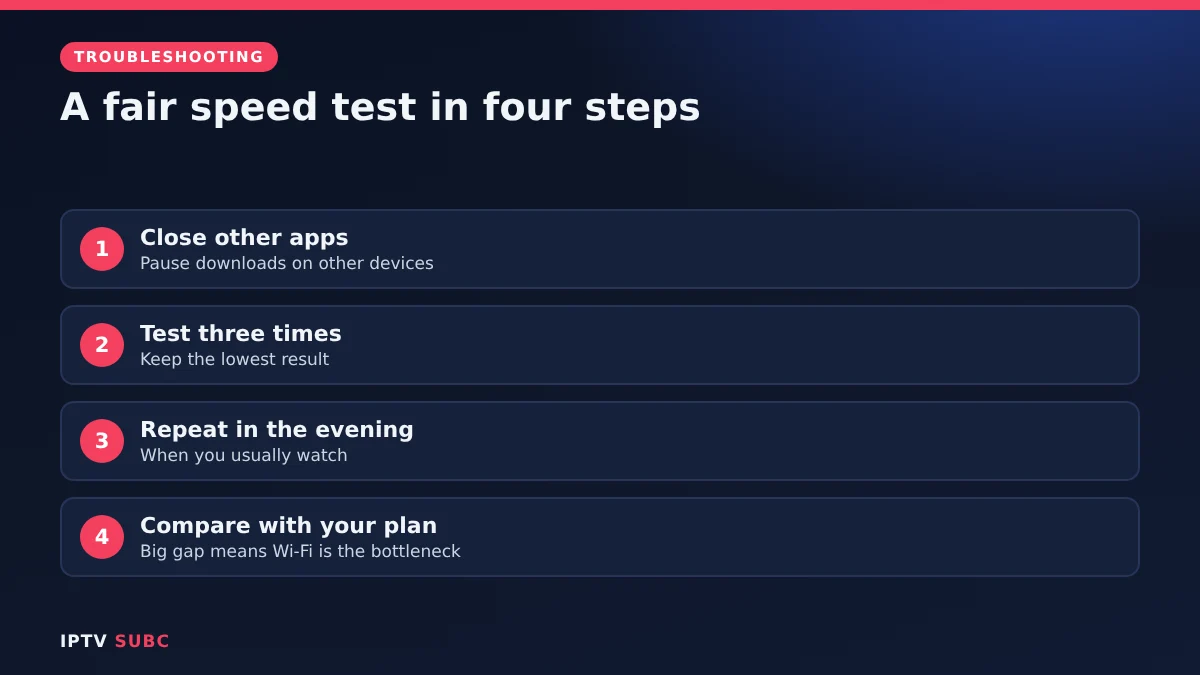
A fair test in four steps
- Close other apps and pause downloads on other devices.
- Test three times and note the lowest result, not the best.
- Repeat in the evening, when you usually watch.
- Compare with your plan. If the TV gets far less than you pay for, the Wi-Fi is the bottleneck.
Results too low? What to do next
- Switch to 5 GHz Wi-Fi in Settings, Network, if your router offers it.
- Use the HDMI extender so the stick sits away from the back of the TV.
- Go wired with an adapter; see our Fire TV Ethernet adapter guide.
- Restart the stick and router.
- Work through the fixes in our IPTV buffering guide.
If the speed is fine but IPTV still buffers every evening, your internet provider may be slowing video, or the IPTV provider’s servers may be busy. A VPN can help with the first; see VPN on Fire TV.
FAQ
Is there a speed test on Fire TV without installing apps?
Yes. On compatible devices, Settings, Network, highlight your connection, press Play/Pause and select Run Speed Test.
Why is my Fire TV slower than my phone?
Distance, walls, the TV itself and the stick’s smaller antenna all reduce Wi-Fi speed.
What speed do I need for IPTV?
About 10 to 15 Mbps per Full HD stream and 25 Mbps or more for 4K, measured on the TV.
Does a VPN change my speed test?
Yes. A VPN usually lowers the result a little; test with it on and off to compare.
How often should I test?
Whenever buffering starts, and after you change anything in your network.
Next steps
Plan your household’s needs with IPTV speed requirements, or fix a slow connection with the IPTV buffering fixes.