
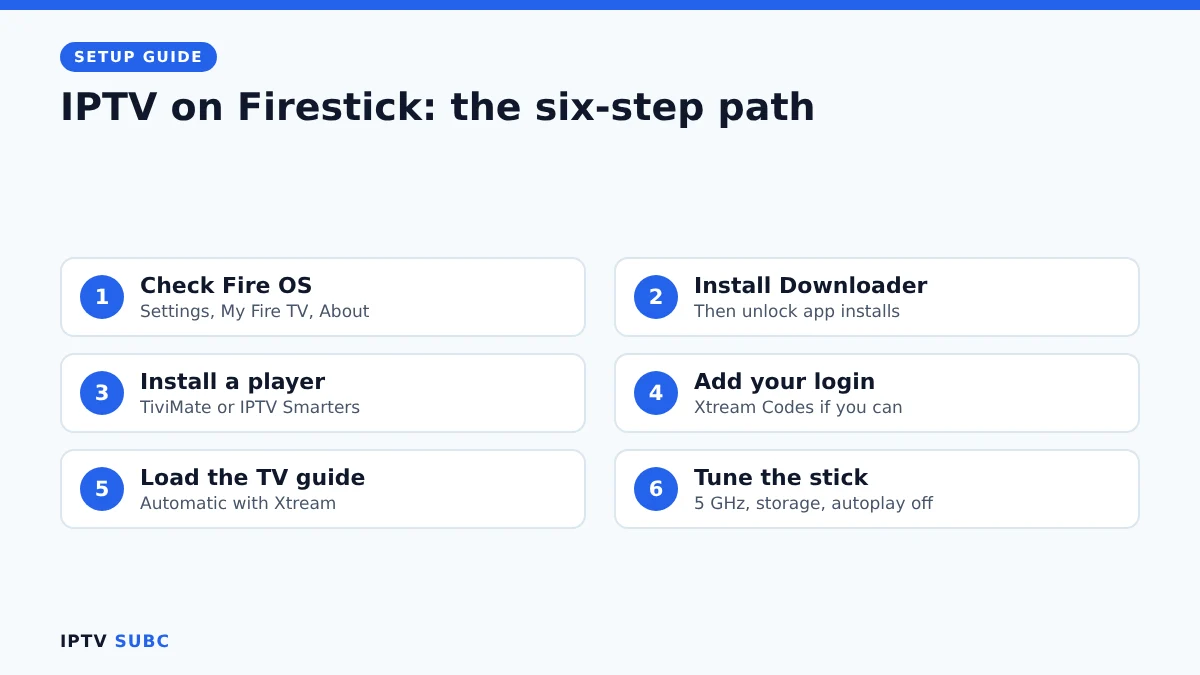
Key takeaway: To set up IPTV on Firestick, six steps take a new Fire TV Stick to live TV: check your stick runs Fire OS, install Downloader, install a player, add your login, load the TV guide and tune the stick for smooth streams. Allow about 20 minutes.
The Fire TV Stick is the most popular way to watch IPTV, because it is affordable, small and runs every major player. However, there are a few traps. Some new models cannot install IPTV players at all, and a few wrong settings can cause constant buffering.
This quick start gives you the whole path for IPTV on Firestick on one page. Each step explains what to do and why, and links to a detailed guide if you want more help. Follow the steps in order and you will avoid both traps.
IPTV on Firestick: checklist before you start
- A Fire TV device running Fire OS. The Fire TV Stick 4K Max and 4K Plus are ideal.
- A login from a licensed IPTV provider, or a trial login to test.
- About 10 Mbps of steady internet per Full HD stream.
- Your remote and about 20 minutes.
New to IPTV? Read our beginner’s guide to what IPTV is first; it takes five minutes.
Step 1: Check your Firestick can install IPTV apps
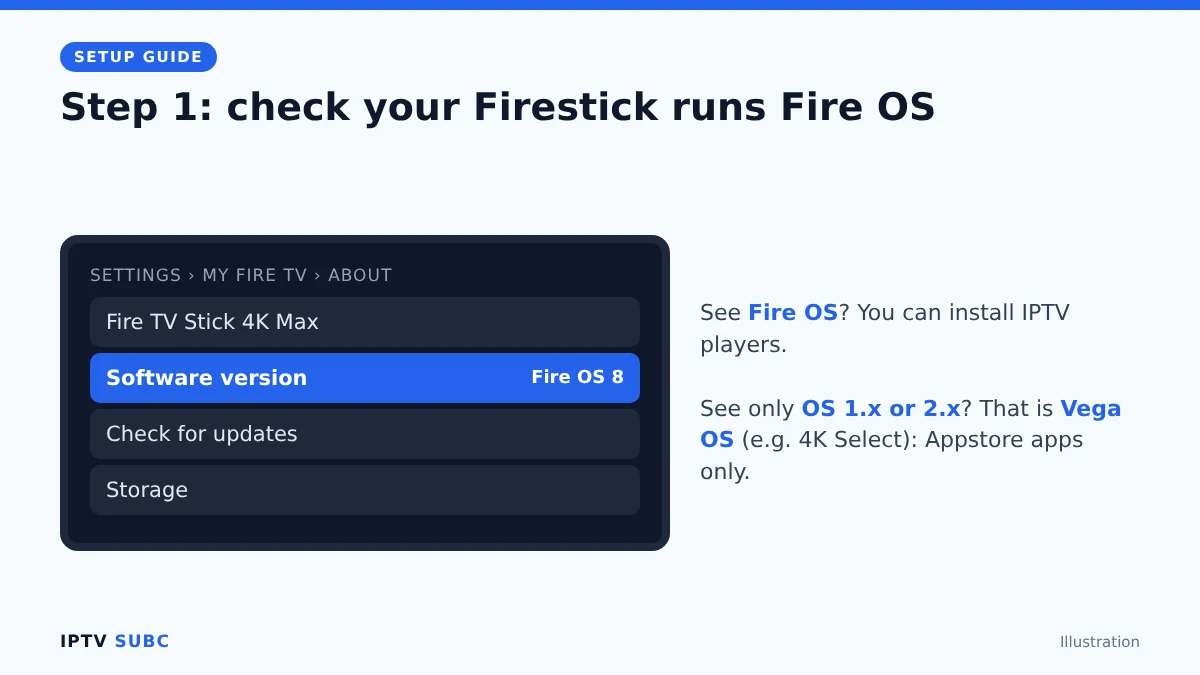
Amazon now sells two kinds of Fire TV. Most run Fire OS, which lets you install apps from outside the Amazon Appstore. A few newer models run Vega OS, which does not. On Vega OS, popular players such as TiviMate and IPTV Smarters will not install.
- Press Home and open Settings (the gear icon).
- Go to My Fire TV, then About.
- Look at the software version. “Fire OS” means you are ready. If it only says “OS” with a version starting with 1 or 2, it is Vega OS.
Vega OS models include the Fire TV Stick 4K Select (2025) and the second-generation Fire TV Stick HD (2026). If you have one, you are limited to apps in the Appstore, such as VLC.
Step 2: Install Downloader
Most IPTV players are not in the Amazon Appstore, so you install them with a free app called Downloader. You install Downloader from the Appstore, unlock Developer Options once and allow Downloader to install apps. It takes about five minutes. Our Downloader on Fire TV guide shows every screen.
Step 3: Choose and install a player
A player is the app that shows your channels. It contains no channels itself; your provider supplies those.
| Player | Best for | Price | Guide |
|---|---|---|---|
| TiviMate | Live TV with a real TV guide | Free, optional Premium | {{tivimate-fire-tv-setup |
| IPTV Smarters Pro | Films and series | Free | {{iptv-smarters-pro-fire-tv-setup |
| OTT Navigator | Free all-rounder, big playlists | Free, optional Premium | OTT Navigator setup guide |
| VLC | Testing an M3U link | Free, in the Appstore | No guide needed |
Still unsure? Our comparison of the best IPTV player for Fire TV helps you decide in a minute. Always download players from their official websites, never “modded” or “Premium unlocked” copies.
Step 4: Add your IPTV login
Your provider gives you either Xtream Codes details (server, username, password) or an M3U link. Choose Xtream Codes whenever you can, because it loads the TV guide, films and series automatically, and three short fields are much easier to type with a remote. Our guide to M3U vs Xtream Codes explains both in plain words.
Tip: the details are case-sensitive, and the server address must include http:// and the port number, for example :8080.
Step 5: Load the TV guide
With Xtream Codes, the guide usually appears by itself within a minute or two. With an M3U link, add the guide (EPG) address from your provider in the player’s settings. If the guide stays empty or shows the wrong times, see IPTV guide not working.
Step 6: Tune your Firestick for smooth IPTV
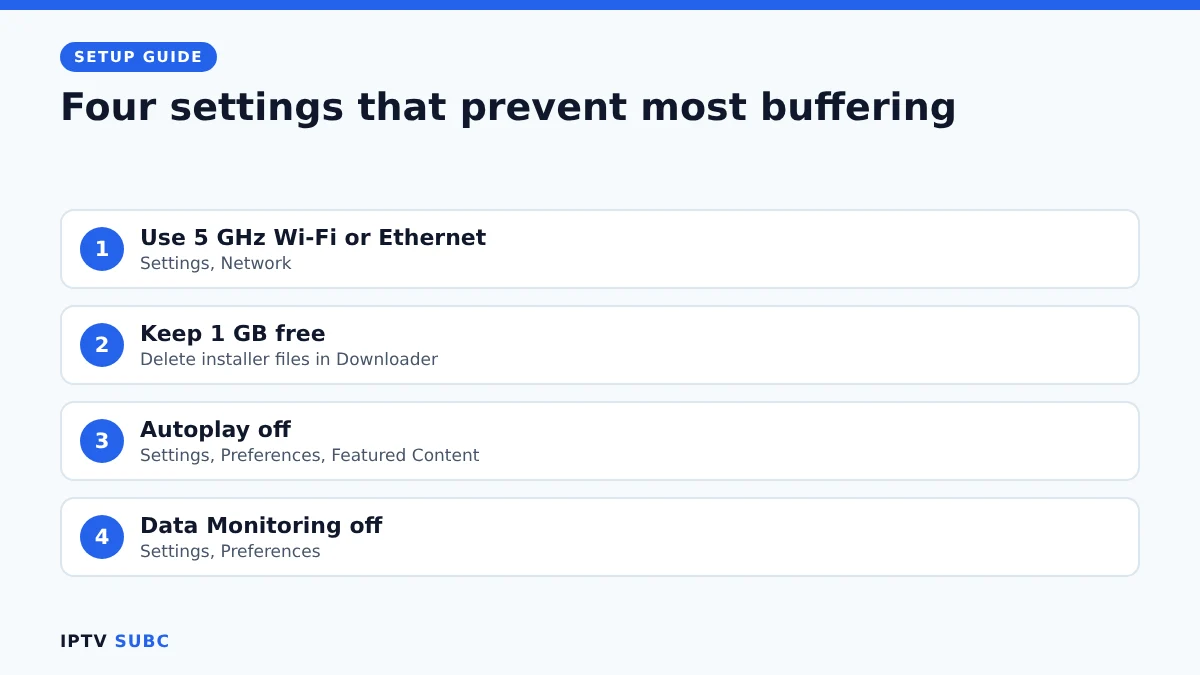
- Connection: use the 5 GHz Wi-Fi network or an Ethernet adapter.
- Storage: keep at least 1 GB free, and delete installer files in Downloader.
- Autoplay: turn off video and audio autoplay under Settings, Preferences, Featured Content.
- Data Monitoring: switch it off under Settings, Preferences.
- Buffering: if streams stutter, follow our IPTV buffering fixes.
- Privacy: optionally add a VPN with our VPN on Fire TV guide.
Is IPTV on Firestick legal?
Yes, the Fire TV Stick and IPTV players are legal. The players contain no channels, so legality depends on your provider. Only use services that hold the rights to the channels they offer; our checklist on how to choose an IPTV provider shows what to look for. For Amazon’s own device help, see Fire TV help.
Quick troubleshooting
| Problem | Fix |
|---|---|
| Downloader is not in search | Your stick probably runs Vega OS; check Settings, My Fire TV, About |
| “Invalid login” in the player | Retype the details; check http:// and the port in the server address |
| Channels play but the guide is empty | Refresh the EPG, or add the guide link for M3U logins |
| Streams buffer in the evening | Use 5 GHz or Ethernet, then work through the buffering fixes |
For another walkthrough of the same path, read IPTV on Firestick on Legion Webs.
FAQ
Which Firestick is best for IPTV?
The Fire TV Stick 4K Max, followed by the 4K Plus. Both run Fire OS, have 2 GB of memory and install every player in this guide.
How long does it take to set up IPTV on Firestick?
About 20 minutes the first time. Adding another player later takes under five minutes.
Can I use IPTV on Firestick without Downloader?
Only with players listed in the Amazon Appstore, such as VLC. Most popular players, including TiviMate, are installed with Downloader.
Does IPTV on Firestick need a VPN?
No, it works without one. A VPN is useful for privacy and when your internet provider slows down streaming.
Can I use one subscription on several Fire TV Sticks?
Yes, up to the number of connections in your plan.
Next steps
Start with Step 2 now: install Downloader on Fire TV. Then pick your player with TiviMate on Fire TV or IPTV Smarters Pro on Fire TV.
As an Amazon Associate, we earn from qualifying purchases made through device links on this page.