
Key takeaway: A Fire TV Ethernet adapter connects your stick to the router with a cable, so live channels stop fighting with walls, neighbours’ Wi-Fi and microwaves. It sits between the stick and its power cable, takes two minutes to set up and needs no settings change.
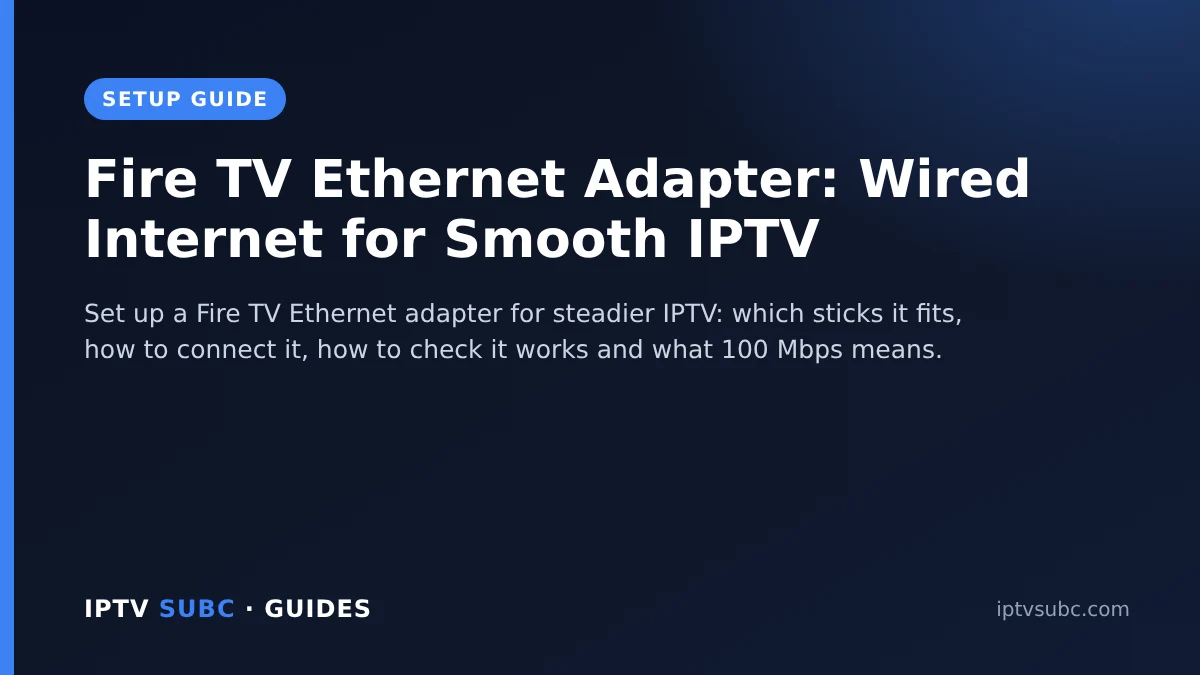
Wi-Fi is convenient, but it is also the most common cause of IPTV buffering. Live TV cannot download far ahead the way Netflix can, so even a short dip in the Wi-Fi signal shows up as a spinning wheel. A cable removes almost all of that.
This guide explains what a Fire TV Ethernet adapter is, which devices it works with, how to connect it step by step, how to check that the stick really uses the cable, and when you might not need one. It is written for beginners, so no networking knowledge is needed.
In this guide
Why a cable beats Wi-Fi for live TV
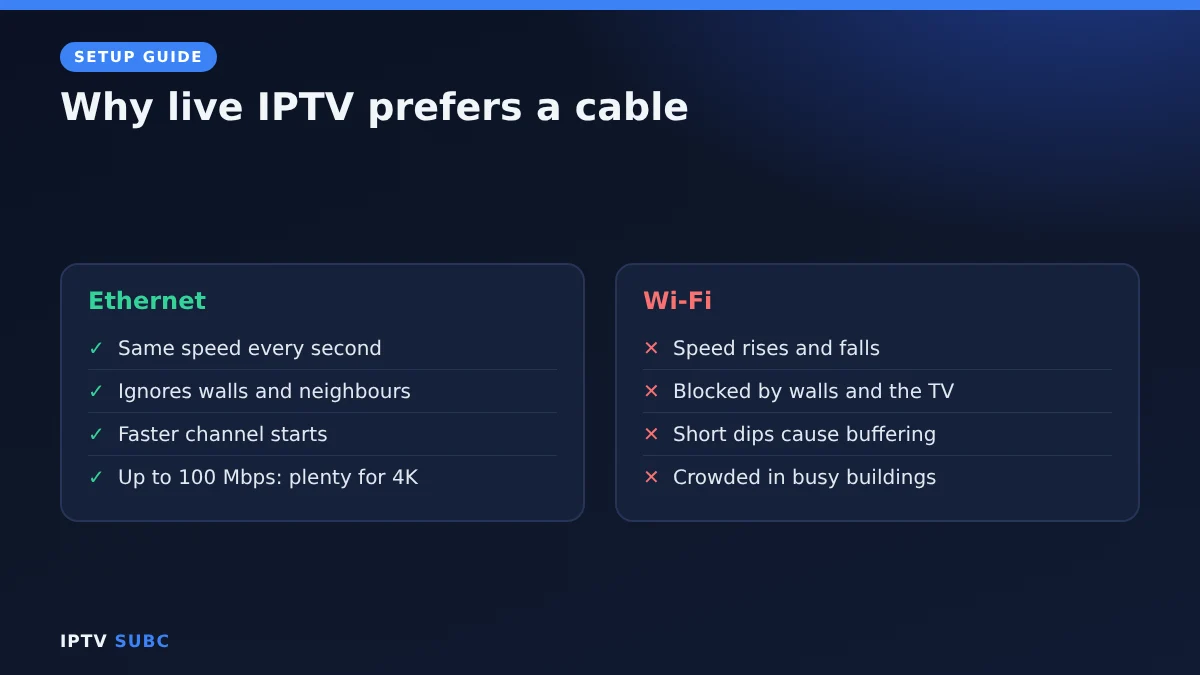
- Steady speed: a cable delivers the same speed every second. Wi-Fi rises and falls as people move around or neighbours use their networks.
- No interference: walls, the TV itself, metal furniture and microwave ovens all weaken Wi-Fi. A cable ignores them.
- Lower delay: channels start and switch faster.
Speed is rarely the issue; consistency is. That is why a wired connection is the single most effective fix in our IPTV buffering guide.
What 100 Mbps really means
Amazon’s own Ethernet adapter, and most similar adapters for Fire TV Sticks, run at up to 100 Mbps, Guiding Tech notes. Even the Fire TV Cube’s built-in port is a 10/100 port. On paper, a fast Wi-Fi connection can be quicker. In practice, IPTV needs far less:
| Stream | Comfortable speed |
|---|---|
| Full HD channel | 10 to 15 Mbps |
| 4K channel | About 25 Mbps |
| Fire TV wired limit | Up to 100 Mbps |
So 100 Mbps steady beats 200 Mbps that drops every few minutes. For one TV, a wired Fire TV has several times the speed a 4K stream needs.
Which Fire TV devices it works with
- Fire TV Sticks have no Ethernet port, so they need an adapter. Guiding Tech lists Amazon’s adapter as compatible with the Fire TV Stick Lite, Fire TV Stick 4K, Fire TV Stick 4K Max and Fire TV Cube.
- Fire TV Cube (3rd generation) has a built-in Ethernet port, so you can plug a cable straight in.
- Newer or Vega OS models, such as the 4K Select, may differ, so check compatibility on the adapter’s product page before buying.
Buying a new stick anyway? The Fire TV Stick 4K Max is our pick for IPTV, and it works with Amazon’s adapter.
What you need
- A Fire TV device (see the list above)
- A Fire TV Ethernet adapter (Amazon’s own, or a compatible one)
- A network cable long enough to reach your router (Cat 5e or Cat 6 is plenty)
- A free port on your router
- About 5 minutes
Set up the Fire TV Ethernet adapter step by step
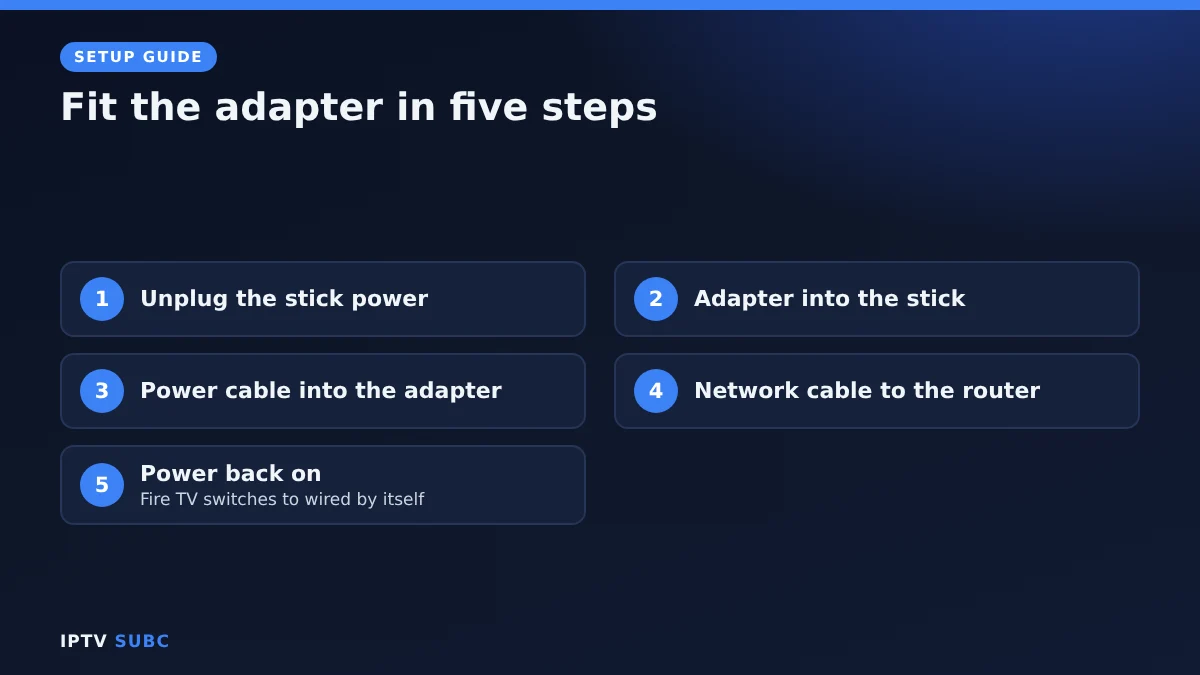
- Unplug the stick’s power cable from the stick.
- Plug the adapter into the stick’s power port.
- Plug the original power cable into the adapter. The adapter passes power through to the stick, so the stick stays powered as before.
- Connect the network cable from the adapter to a free port on your router.
- Plug the power back in at the wall and wait for the Fire TV to start.
That is it. Fire TV switches to the wired connection automatically; there is nothing to configure. On a Fire TV Cube, simply plug the cable into the Cube’s own Ethernet port.
Check the stick uses the cable
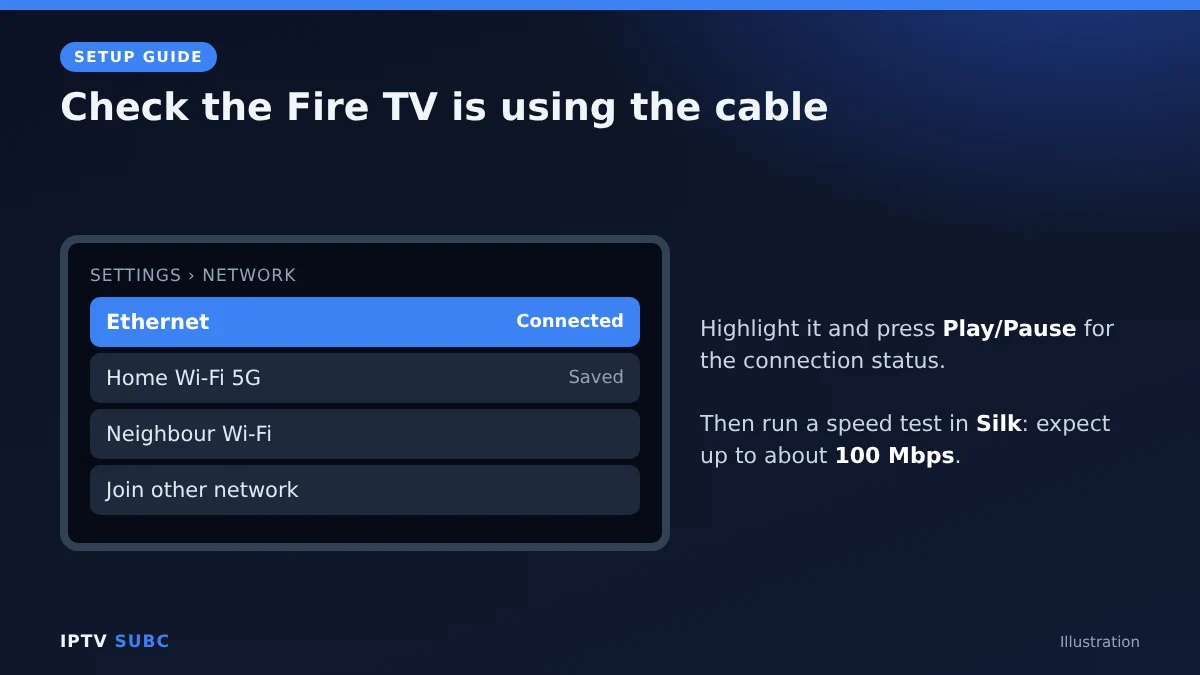
- Go to Settings, Network.
- You should see a wired or Ethernet connection listed as connected.
- Highlight it and press Play/Pause on the remote to see the connection status.
- For a real-world number, open a speed test site in the Silk browser. Expect a result close to your plan or up to about 100 Mbps.
If it still shows Wi-Fi only, unplug and reconnect each cable, try another router port and restart the Fire TV.
No cable near the TV?
- Powerline adapters send the network through your home’s electrical wiring. Plug one near the router and one near the TV, then connect the Fire TV adapter to it.
- Move the router or add a mesh point closer to the TV, then use a short cable.
- Use 5 GHz Wi-Fi and the HDMI extender that came with your stick, if wiring is impossible.
Troubleshooting
| Problem | Fix |
|---|---|
| Fire TV still on Wi-Fi | Check both ends of the cable, try another router port, restart |
| No picture after fitting the adapter | Make sure the original power supply is plugged into the adapter; weak phone chargers may not be enough |
| Speed lower than expected | Remember the 100 Mbps limit; test with nothing else downloading |
| Still buffering when wired | The cause is the provider or the player; work through the buffering fixes |
| Adapter not recognised | Check compatibility with your model, especially newer Vega OS sticks |
Good to know: a cable improves the connection, not the content. Only use IPTV services that hold the rights to the channels they offer; see how to choose an IPTV provider.
FAQ
Do I need an Ethernet adapter for IPTV on Fire TV?
Not always, but it is the most reliable way to stop Wi-Fi buffering, especially for live sport.
Does the adapter make my Fire TV faster?
It makes the connection steadier. Raw speed tops out around 100 Mbps, which is more than IPTV needs.
Does it need its own power?
It uses the stick’s original power supply, which plugs into the adapter.
Can I use it with a VPN?
Yes. The VPN works the same over a cable; see our VPN on Fire TV guide.
Will it work on the Fire TV Stick 4K Select?
Check the adapter’s product page, because Vega OS models may differ.
Next steps
Wired up? Finish tuning with the IPTV on Firestick quick start, then pick a player in best IPTV player for Fire TV.
As an Amazon Associate, we earn from qualifying purchases made through device links on this page.