
Key takeaway: MAG box IPTV setup takes about 15 minutes: connect the box, give your MAC address to your provider, enter the portal URL they send under Settings, System settings, Servers, Portals, then restart. There is no username or password; the MAC address is your login.

MAG boxes, made by Infomir, are small set-top boxes built only for IPTV. They have been around for years, and many people love them because they behave like a cable box: switch on, pick a channel, watch. There are no app stores to explore and no sideloading.
However, the setup works differently from a Fire TV Stick. Instead of typing a username and password into an app, a MAG box logs in with its MAC address and a portal URL. This guide explains both in plain English, then walks you through the full MAG box IPTV setup step by step, including the errors people hit most often and how to fix them.
In this guide
- How a MAG box logs in (and why it is different)
- What you need
- Step 1: Connect the box
- Step 2: Find your MAC address
- Step 3: Send the MAC address to your provider
- Step 4: Enter the portal URL
- Step 5: Restart and load the portal
- Step 6: Tidy up your settings
- MAG box IPTV setup errors and fixes
- MAG box or Fire TV Stick?
- Can I use a MAC portal without a MAG box?
- FAQ
- Next steps
How a MAG box logs in (and why it is different)
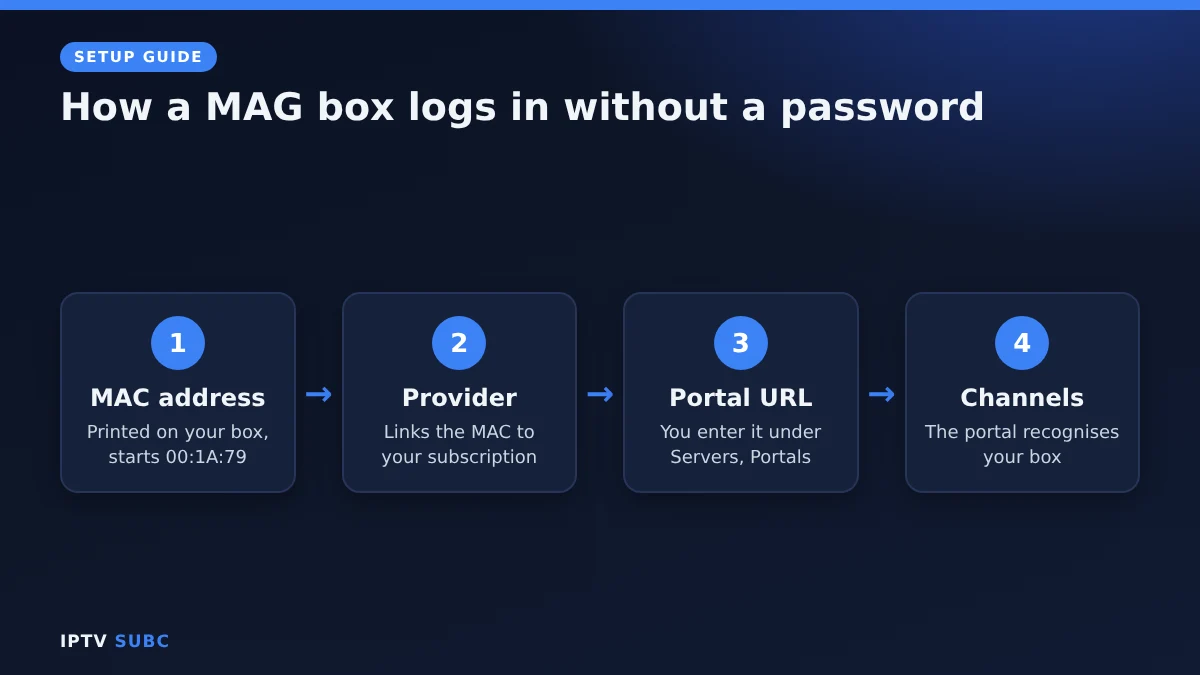
Most IPTV players use an Xtream Codes login or an M3U link (see M3U vs Xtream Codes). A MAG box uses a third method, often called a MAC portal or Stalker portal:
- The MAC address is a unique hardware ID printed on your box. MAG boxes use addresses that start with 00:1A:79.
- You give that MAC address to your provider. They link it to your subscription on their server.
- The provider sends you a portal URL, a web address for their server.
- You enter the portal URL on the box. When it connects, the server recognises your MAC address and loads your channels.
In other words, the box itself is the key. That is why you never type a password, and also why you should keep your MAC address and portal URL private: anyone with both could try to use your subscription.
What you need
- A MAG box from Infomir, with its power adapter and remote
- A TV with an HDMI input, and an HDMI cable
- An internet connection: an Ethernet cable to your router is best, or Wi-Fi on models with a “w” in the name
- A subscription from an IPTV provider that supports MAG boxes
- About 15 minutes
Good to know: older models such as the MAG 250 and 254 still work, but they struggle with HD and 4K streams and receive few updates. If you are buying a box today, choose a current 4K model.
Step 1: Connect the box
- With the box switched off, connect an Ethernet cable from your router to the box’s network port.
- Connect the box to your TV with an HDMI cable.
- Plug in the power adapter. The box starts automatically.
- Switch on your TV and choose the matching HDMI input with the Source or Input button.
A cable is strongly recommended. MAG boxes are designed for live TV, and a wired connection avoids most buffering. If you must use Wi-Fi, set it up in the network settings first and use the 5 GHz network if your box supports it.
Step 2: Find your MAC address
You need the MAC address before the provider can activate you. There are two places to find it:
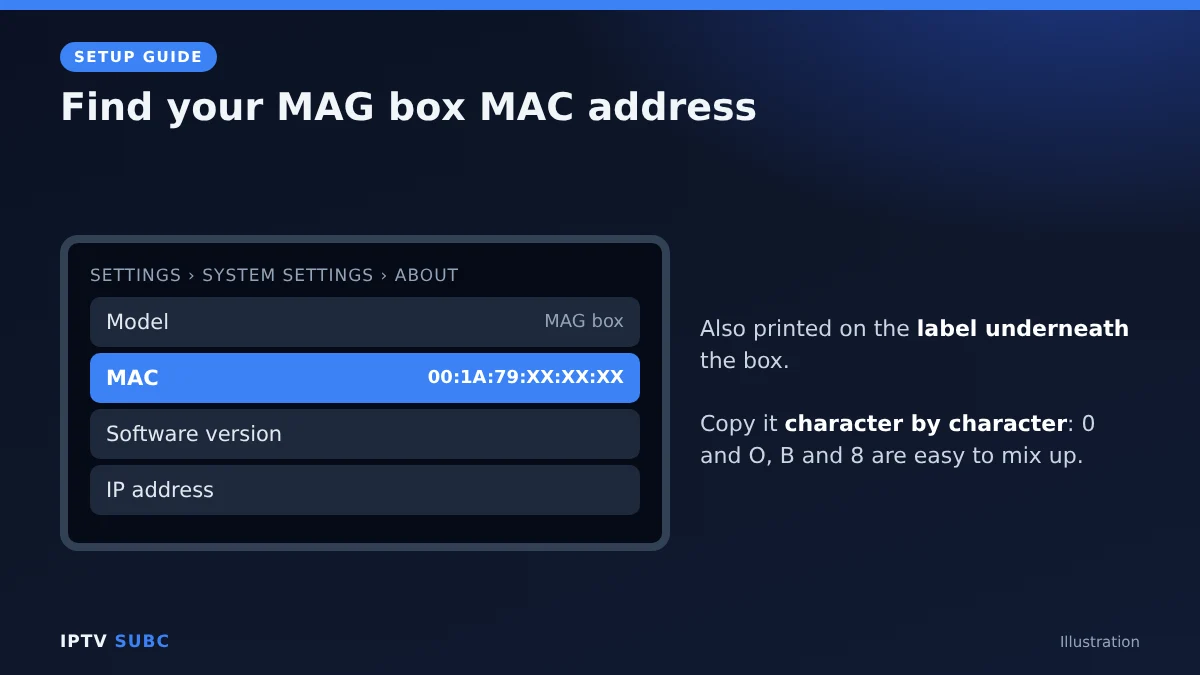
- On the label underneath the box. Look for “MAC” followed by a code that starts with 00:1A:79.
- In the menu. Open Settings, then System settings, and look for an About or Info page that shows “MAC”. Menu names vary slightly between firmware versions.
Copy it carefully, character by character. The most common setup problem is a single wrong character, for example confusing 0 (zero) with O or B with 8.
Step 3: Send the MAC address to your provider
Send the MAC address to your provider, usually through their website, account page or support email. They add it to your subscription and reply with your portal URL. Some providers activate it in minutes; others take a few hours.
Not chosen a provider yet? Use our checklist on how to choose an IPTV provider, and only use services that hold the rights to the channels they offer.
Step 4: Enter the portal URL
This is the heart of the MAG box IPTV setup. You add the portal URL in the box’s built-in menu (Infomir calls it the inner or embedded portal).
- When the box starts and shows Portal Loading, or when you are on the main menu, press Setup (or Settings) on the remote.
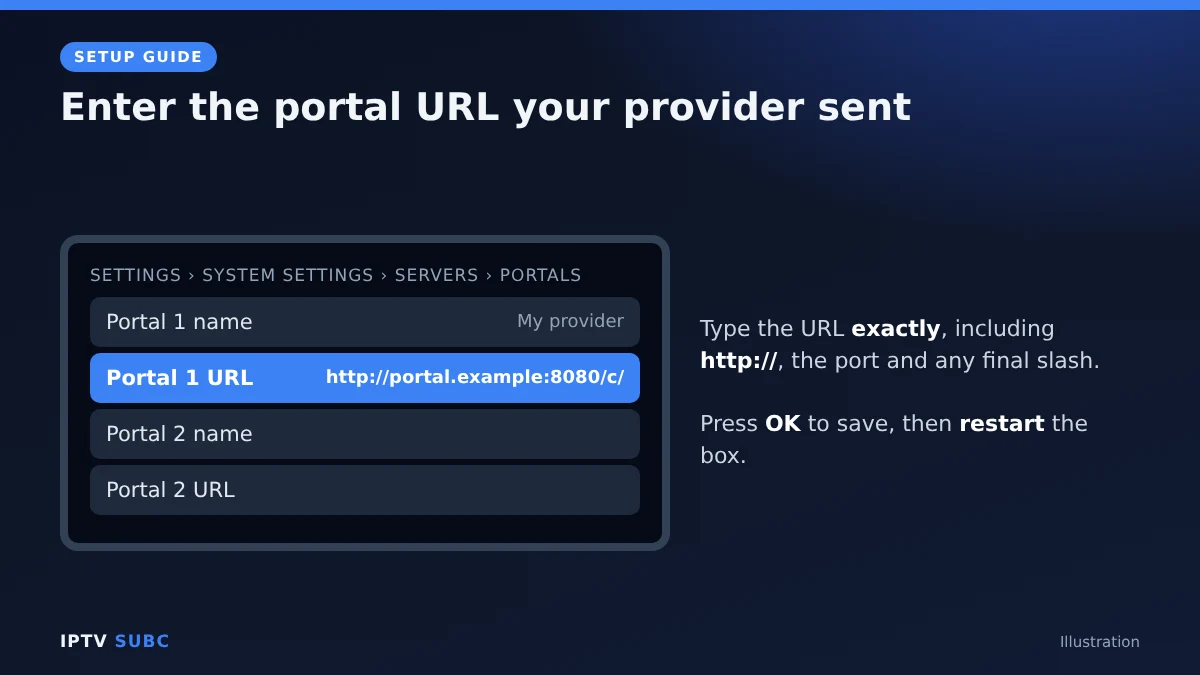
- Go to System settings, then Servers, then Portals. Infomir’s own MAG FAQ lists the same path: Settings, System settings, Servers, Portals.
- In Portal 1 name, type any name you like, such as the provider’s name.
- In Portal 1 URL, type the portal URL exactly as your provider sent it, including http:// and any port number, and the slash at the end if there is one.
- Press OK to save.
Tip: the on-screen keyboard is slow, so double-check the URL before you save. One missing character stops the portal from loading.
Step 5: Restart and load the portal
- Go back to the main settings screen and choose the restart or reboot option. If you cannot find it, unplug the power for 10 seconds and plug it back in.
- The box restarts and connects to the portal. The first load can take one to three minutes.
- When it works, you see your provider’s menu with categories such as Live TV, films and series, and a TV guide.
That is it. From now on, the box goes straight to your provider’s portal every time you switch it on.
Step 6: Tidy up your settings
- Software update: check Settings, Software update (or autoupdate) so the box stays current. Do not switch the box off during an update.
- Time and time zone: a wrong time makes the TV guide look shifted. Set your time zone in the system settings.
- Video output: match the resolution to your TV, for example 1080p or 2160p for a 4K TV.
- Favourites: most portals let you mark favourite channels, which makes zapping much faster.
MAG box IPTV setup errors and fixes
| What you see | What it means | Fix |
|---|---|---|
| “Authorization failed” or “Access denied” | The server does not recognise your MAC address | Check the MAC you sent, character by character; ask the provider to confirm it is active |
| “Account expired” | The subscription linked to the MAC has ended | Renew, or ask the provider to check the dates |
| Stuck on “Portal Loading” | Wrong URL or no internet | Re-enter the URL; check the network cable and router |
| “Your STB is not supported by the portal” | The portal expects another model | In the Portals settings, try a different compatible model if your box offers that option, or ask the provider |
| Channels list loads but nothing plays | Stream or network issue | Restart the box and router; try another channel; contact the provider |
| TV guide shifted by hours | Time zone mismatch | Correct the time zone in system settings |
| Constant buffering | Weak connection or busy server | Use Ethernet; see our IPTV buffering fixes |
MAG box or Fire TV Stick?
| MAG box | Fire TV Stick (Fire OS) | |
|---|---|---|
| Login method | MAC address and portal URL | Xtream Codes or M3U in an app |
| Players | The provider’s portal | TiviMate, IPTV Smarters and more |
| Other apps | Very few | Netflix, YouTube and thousands more |
| Network | Ethernet port built in | Wi-Fi, Ethernet with an adapter |
| Best for | Plug-and-play live TV | Flexibility and choice |
If you want a wider choice of players, a Fire TV Stick is easier to live with; see the best devices for IPTV. If you just want live TV that feels like cable, a MAG box is hard to beat.
Can I use a MAC portal without a MAG box?
Yes, in some players. TiviMate, for example, supports Stalker portals alongside Xtream Codes and M3U, and some providers offer it for Formuler boxes too. However, the provider still links the portal to a MAC address, so ask them which MAC to register.
For a provider’s view of the same steps, see the MAG box IPTV setup guide from 8K IPTV Group.
FAQ
Who makes MAG boxes?
MAG boxes are made by Infomir. They contain no channels; those come from the service you connect them to.
Do I need a username and password?
No. The MAC address works as your login, together with the portal URL.
Can I use two portals?
Yes. The Portals screen has more than one slot, so you can add a second provider in Portal 2 and choose between them.
Can I move my subscription to a new MAG box?
Usually yes, but the new box has a different MAC address, so ask your provider to update it.
Why is my MAG box slow?
Older models (MAG 250 and 254) struggle with today’s streams and large portals. A current 4K model with Ethernet is much faster.
Next steps
Want to compare other ways to watch? Read the best devices for IPTV. New to IPTV logins? See M3U vs Xtream Codes. Streams stuttering? Work through the IPTV buffering fixes.
Free download
Firestick + IPTV Setup Checklist
Two printable pages: install, login, the settings that make it faster and quick fixes for buffering and an empty guide.
We’ll send occasional new guides. No spam, unsubscribe any time. Privacy