
Key takeaway: Setting up Firestick takes about 15 minutes: plug the stick into HDMI and power, pair the remote with the Home button, connect to Wi-Fi, let it update, sign in to Amazon and test TV volume control. Then a few extra settings get it ready for IPTV.
A new Fire TV Stick is one of the easiest ways to start streaming, and it is the device most of our IPTV guides are written for. However, the first setup has a few screens that confuse beginners, and some choices you make now (such as which power adapter you use) affect how smoothly it runs later.
This guide walks you through the whole Fire TV Stick setup from the box to the Home screen, one screen at a time, then adds the extra steps that prepare it for IPTV. It works for the Fire TV Stick 4K Max, 4K Plus, 4K Select, HD and Lite.
In this guide
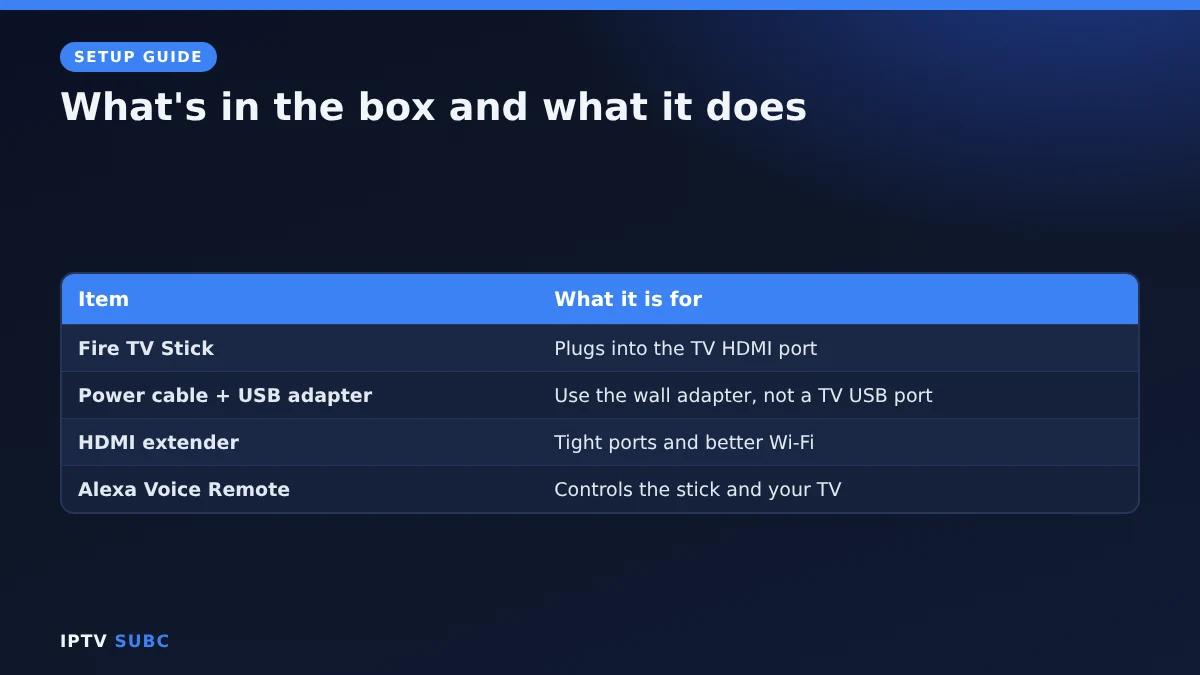
Setting up Firestick: what is in the box
- The Fire TV Stick itself
- A power cable and a USB power adapter
- An HDMI extender (a short flexible cable)
- The Alexa Voice Remote and two batteries
Keep everything; in particular, the HDMI extender helps Wi-Fi reception later.
What you need
- A TV with a free HDMI port
- A power socket near the TV
- Your Wi-Fi name and password
- An Amazon account (you can create one during setup)
- About 15 minutes
Step 1: Plug it in
- First, plug the stick into a free HDMI port on your TV. If the port is tight or behind the wall mount, use the HDMI extender between the TV and the stick.
- Next, connect the power cable to the stick.
- Then plug the cable into the included USB power adapter and the adapter into a wall socket.
- Finally, switch on the TV and choose the matching HDMI input with your TV remote’s Source or Input button.
Tip: use the wall adapter, not a USB port on the TV. TV USB ports often deliver too little power, which causes freezing and warnings about power later.
Step 2: Pair the remote
- Put the batteries in the remote.
- When the Fire TV logo appears, press the Home button on the remote. It pairs automatically.
- Press Play/Pause to start setup.
If nothing happens, hold the Home button for 10 seconds and keep the remote close to the TV.
Step 3: Language and Wi-Fi
- Choose your language.
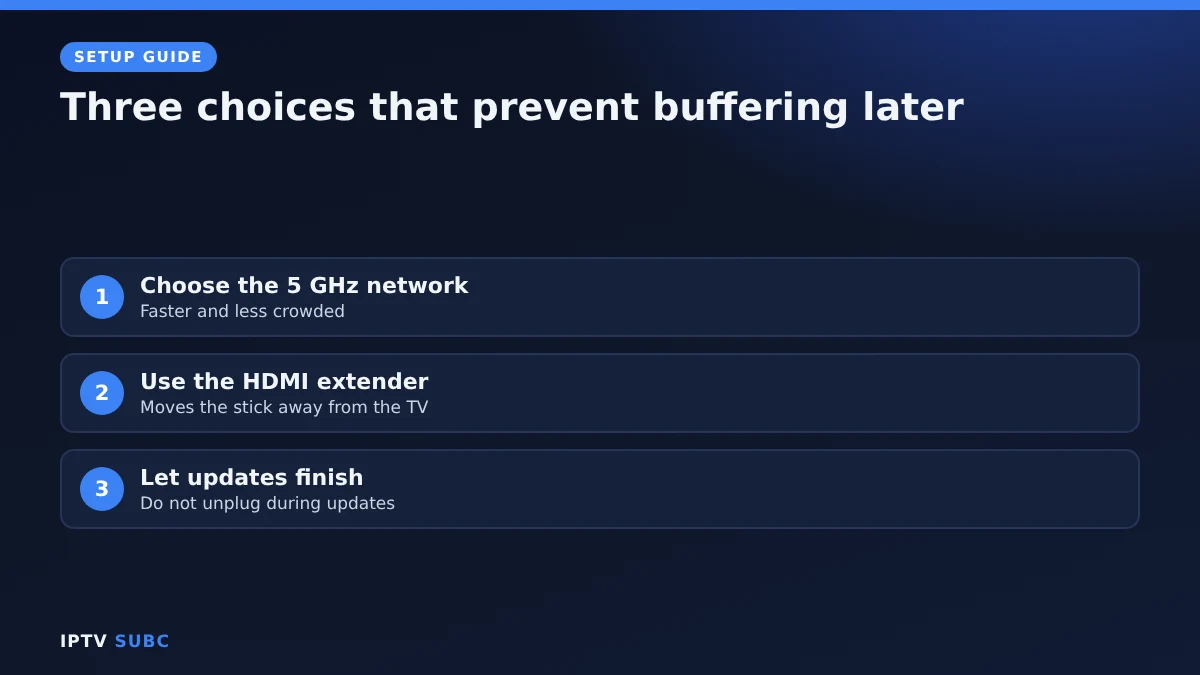
- Pick your Wi-Fi network and enter the password with the on-screen keyboard. If your router shows two networks, choose the 5 GHz one; it is faster and less crowded, which matters for live TV.
- Wait while the stick downloads and installs software updates. This can take several minutes and the stick may restart; leave it alone until it finishes.
Step 4: Sign in to Amazon
- Sign in with your Amazon account, or create one from the screen.
- Confirm that the stick is registered to your account by selecting Continue.
- Choose whether to save your Wi-Fi password to your Amazon account. This is optional; it only helps if you set up other Amazon devices later.
- If you are replacing an older Fire TV, you may be offered to restore your apps and settings.
Step 5: Parental controls and TV control
- Setup offers to turn on parental controls. You can set them now or later; our IPTV parental controls guide explains the options.
- Next, the stick sets up TV control, so the Fire TV remote can change your TV’s volume and power.
- Press the remote’s volume buttons when asked. If the TV volume changes, select Yes.
Step 6: Choose your apps
Setup asks which streaming services you use, so it can download their apps. Pick the ones you have, or select No thanks and add apps later. Then press OK, and you land on the Home screen. Your Fire TV Stick setup is complete.
After setting up Firestick: get it ready for IPTV
A few extra minutes now saves trouble later.
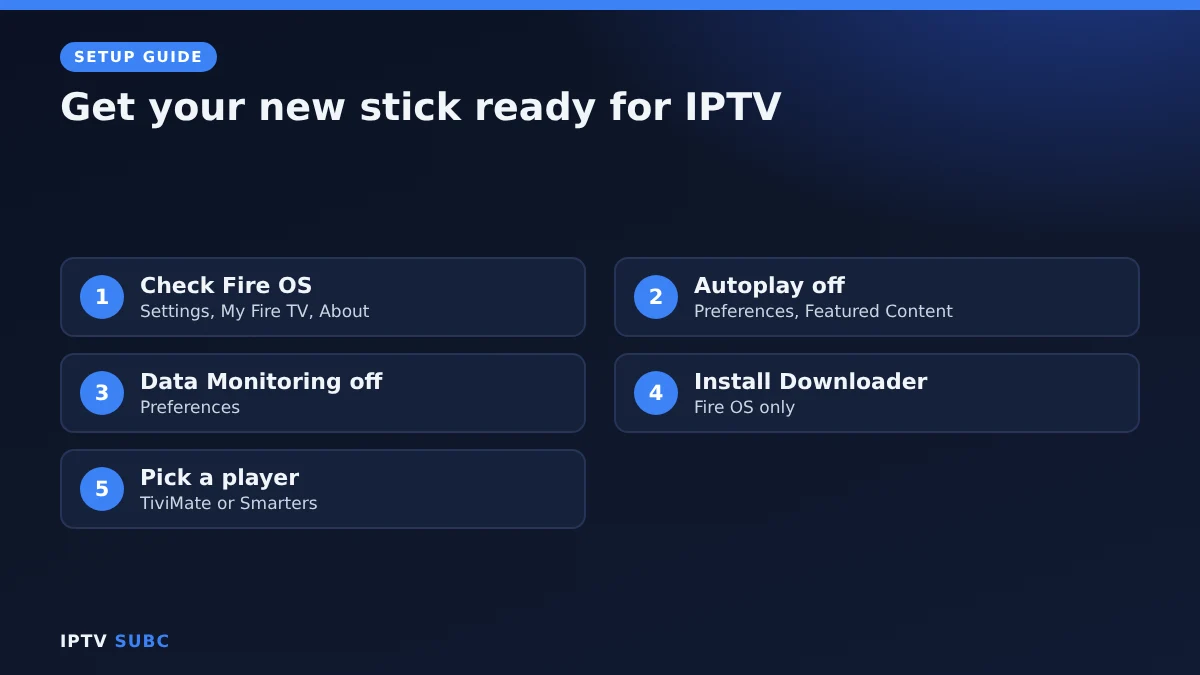
- Check the system. Go to Settings, My Fire TV, About. “Fire OS” means you can install IPTV players such as TiviMate. Just “OS” with a version starting 1 or 2 means Vega OS, which only installs Appstore apps.
- Turn off autoplay. Settings, Preferences, Featured Content: switch off video and audio autoplay so trailers stop competing with your streams.
- Turn off Data Monitoring under Settings, Preferences.
- Install Downloader if you have Fire OS; see Downloader on Fire TV.
- Pick a player with our best IPTV player for Fire TV comparison.
The full path is in the IPTV on Firestick quick start.
Troubleshooting
| Problem | Fix |
|---|---|
| No picture | Check the TV input; try another HDMI port or the extender |
| Remote will not pair | Hold Home for 10 seconds near the TV; replace the batteries |
| Wi-Fi password rejected | Retype it carefully; passwords are case-sensitive |
| Stuck on updates | Wait 15 minutes; then unplug the power for 30 seconds and retry |
| Power warning on screen | Use the included wall adapter instead of a TV USB port |
For Amazon’s own help pages, see Fire TV help. Another walkthrough is Android Central’s setup guide.
Not sure your device is supported by a service? Providers list them, for example on the 4K Flix IPTV supported devices page.
FAQ
Do I need an Amazon account for Fire TV Stick setup?
Yes. You can create one for free during setup.
Can I set it up without a TV remote?
Yes. The Fire TV remote does everything; TV control is optional.
Which Fire TV Stick is best for IPTV?
The Fire TV Stick 4K Max, because it runs Fire OS and every popular IPTV player.
Can I use Ethernet instead of Wi-Fi?
Yes, with an adapter. See Fire TV Ethernet adapter.
How long does setup take?
About 15 minutes, plus any time for updates.
Next steps
Now install Downloader on Fire TV, then follow the IPTV on Firestick quick start.
As an Amazon Associate, we earn from qualifying purchases made through device links on this page.