
Key takeaway: Smart IPTV on Fire TV installs from the developer’s official address with Downloader. You then upload your playlist on the Smart IPTV website using the MAC address shown in the app, rather than typing it with the remote.

Smart IPTV (often written SIPTV) has been around for years and became popular on Samsung and LG TVs. Its biggest strength is the setup: you type your playlist link on a phone or computer instead of with the TV remote. On the other hand, it is more basic than players such as TiviMate, so it suits people who want simple live TV.
This guide shows how to install Smart IPTV on Fire TV safely, upload your playlist, activate the app and decide whether it is the right player for you.
Good to know: Smart IPTV is only a player. It has no channels, so you need a playlist from an IPTV service.
In this guide
What you need
- A Fire TV running Fire OS with Downloader installed (Vega OS models such as the 4K Select cannot install it); see Downloader on Fire TV
- An M3U playlist link or file from your IPTV provider
- A phone or computer to upload the playlist
- For long-term use, a one-time activation per device (check the current price on the official site)
How Smart IPTV is different
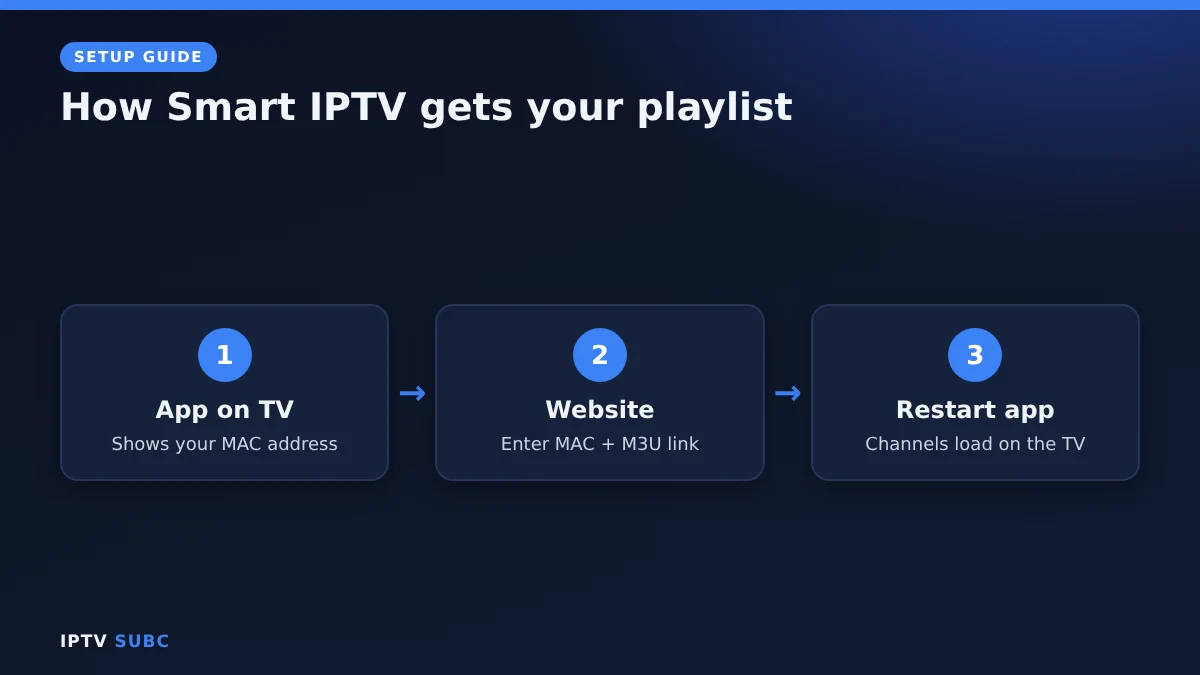
Most players log in inside the app. Smart IPTV works the other way round:
- The app on your TV shows a MAC address, a code that identifies your device.
- On the Smart IPTV website, you enter that MAC address and your playlist link.
- The app downloads your channels the next time it opens.
Step 1: Install Smart IPTV on Fire TV
- Open Downloader on your Fire TV.
- In the address bar, type apk.siptv.app and select Go. This is the official download address listed in the developer’s Android and Fire TV instructions.
- When the download finishes, select Install, then Done.
- Select Delete to remove the installer file and save space.
Avoid copies of Smart IPTV from other websites; they are often outdated, and you cannot be sure what they contain.
Step 2: Note your MAC address
Open Smart IPTV from Your Apps & Channels. The start screen shows a MAC address made of six pairs of letters and numbers. Write it down or take a photo with your phone. This code links your Fire TV to your playlist and your activation.
Step 3: Upload your playlist
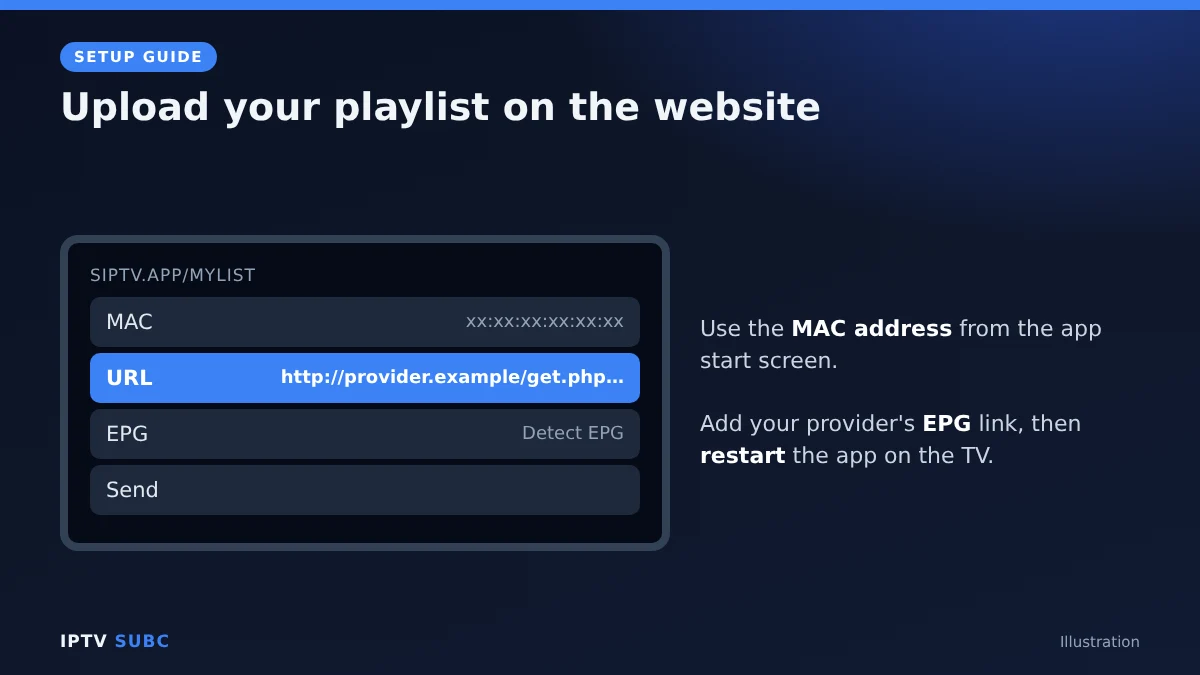
- On your phone or computer, go to siptv.app/mylist.
- Enter the MAC address from your Fire TV.
- Paste your playlist URL (M3U link), or upload the playlist file.
- If your provider gave you a TV guide link, add it in the EPG field, or tick Detect EPG.
- Submit the form and wait for the confirmation.
- On the Fire TV, close Smart IPTV completely and open it again. Your channels now load.
Tip: leave Save online unticked unless the app runs out of memory with a very large playlist. The website explains each option next to the form.
Step 4: Activate before the trial ends
Smart IPTV starts as a trial, and the app shows how much trial time is left. To keep using it, pay the one-time activation for your device on siptv.app/activation with the same MAC address. Activation covers the app on that device only, and it never includes channels. Activate before the trial ends so your playlist stays in place.
Step 5: Watch and navigate
- Press Select to open the channel list and the arrow keys to switch groups.
- Press Menu (three lines) on the remote for app settings such as aspect ratio and player options.
- If a channel stutters, follow our IPTV buffering fixes.
Smart IPTV on Fire TV or another player?
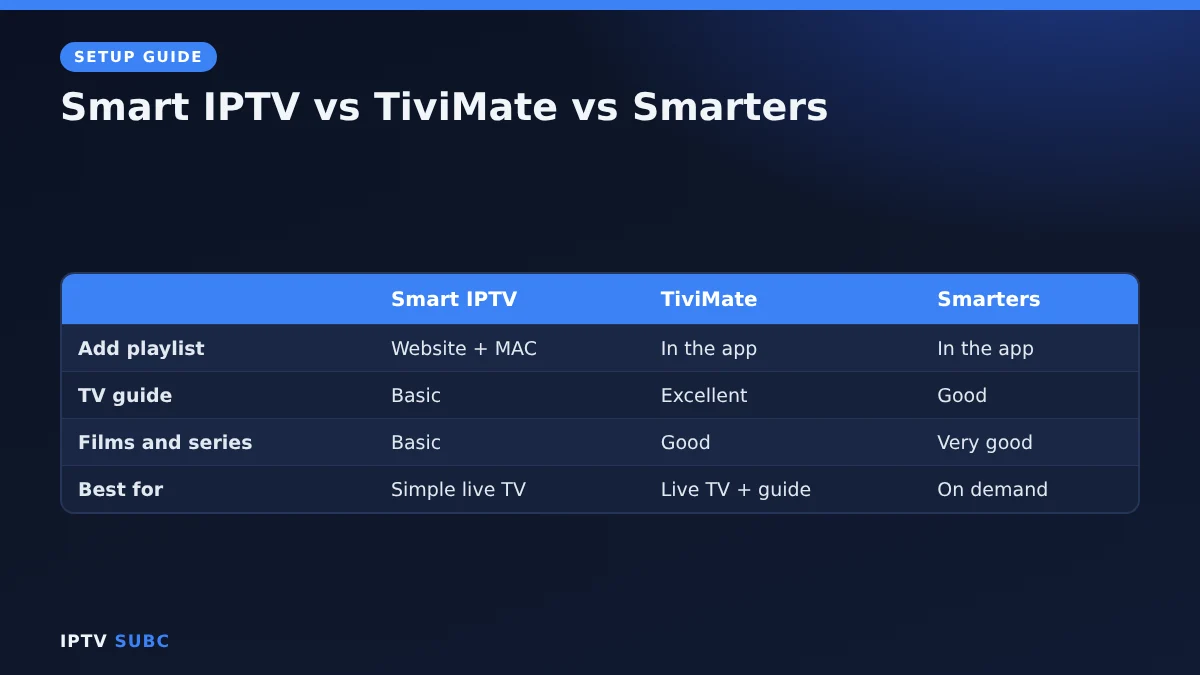
| Smart IPTV | TiviMate | IPTV Smarters Pro | |
|---|---|---|---|
| Add playlist | On the website with MAC | In the app | In the app |
| Price | One-time per device | Free, optional Premium | Free |
| TV guide | Basic | Excellent | Good |
| Films and series | Basic | Good | Very good |
| Best for | Simple live TV, same app as your smart TV | Live TV with a real guide | Films and series |
In short, Smart IPTV is a good pick if you already use it on your smart TV and want the same app on your Fire Stick. For a richer guide, see TiviMate on Fire TV; for films and series, see IPTV Smarters Pro on Fire TV.
Troubleshooting
| Problem | Fix |
|---|---|
| Downloader cannot open apk.siptv.app | Check the spelling, try again later and confirm Downloader may install apps |
| Website says the MAC is invalid | Retype it from the app; 0 and O are easy to mix up |
| Channels do not appear after upload | Force stop the app in Manage Installed Applications, then reopen |
| No TV guide | Add your provider’s EPG link on the mylist page, or tick Detect EPG |
| “Trial expired” | Activate on siptv.app/activation with the same MAC |
The original lesson is Smart IPTV App for Fire Stick on Legion Webs.
If you prefer a player with a one-time activation that also works on smart TVs, the IBO Player Pro setup guide from 8K IPTV Group explains how to install it and add your playlist.
FAQ
Is Smart IPTV free on Fire TV?
You can try it free first. After the trial, it needs a one-time activation per device, with no monthly fee for the app.
Does Smart IPTV come with channels?
No. It is a player only, so you add a playlist from your own IPTV service.
Can I use an Xtream Codes login?
Smart IPTV works with playlist links and files. Most providers can give you an M3U link that contains your login.
Does one activation cover my TV and my Fire Stick?
No. Activation is linked to one device’s MAC address.
Can I change the playlist later?
Yes. Upload a new one on the mylist page with the same MAC address, then restart the app.
Next steps
Compare all players in best IPTV player for Fire TV, or learn how the guide works in IPTV EPG setup.