
Key takeaway: To set up IPTV on Android TV or Google TV, you can install most good IPTV players straight from Google Play. Add your Xtream Codes login, let the guide load, and you are watching in about ten minutes.
Android TV, and its newer look called Google TV, runs on many devices: streaming boxes, the NVIDIA Shield, the Chromecast with Google TV and TVs from brands such as Sony, TCL, Hisense and Philips. Because it is Android, it runs the same players as a Fire TV Stick. In fact, setup is often simpler, because you can install most of them straight from Google Play, with no sideloading.
This guide walks you through IPTV on Android TV from a fresh device to live channels: choosing a player, installing it, sideloading one that is not in the store, adding your login and tuning playback. Every step explains what you will see, so it suits complete beginners.
In this guide
- Android TV or Google TV: is there a difference?
- What you need
- Pick your player for IPTV on Android TV
- Step 1: Install a player from Google Play
- Step 2: Sideload a player that is not in Google Play (optional)
- Step 3: Add your login
- Step 4: Load the guide and tune playback
- Best Android TV devices for IPTV
- Tune IPTV on Android TV for live channels: troubleshooting
- Using your provider’s own app
- FAQ
- Next steps
Android TV or Google TV: is there a difference?
Google TV is Android TV with a newer home screen that recommends shows from your apps. Underneath, the system and the apps are the same. So everything in this guide works on both; only a few menu names differ, which we point out as we go.
Not sure which you have? If your home screen has tabs such as For you, Apps and Library, it is Google TV. If it shows rows of apps and channels with a simple Apps row, it is classic Android TV.
What you need
- An Android TV or Google TV device, signed in to a Google account
- Your IPTV login, ideally Xtream Codes details (see M3U vs Xtream Codes)
- A wired connection if your device has an Ethernet port, or 5 GHz Wi-Fi
- About 10 minutes
Pick your player for IPTV on Android TV
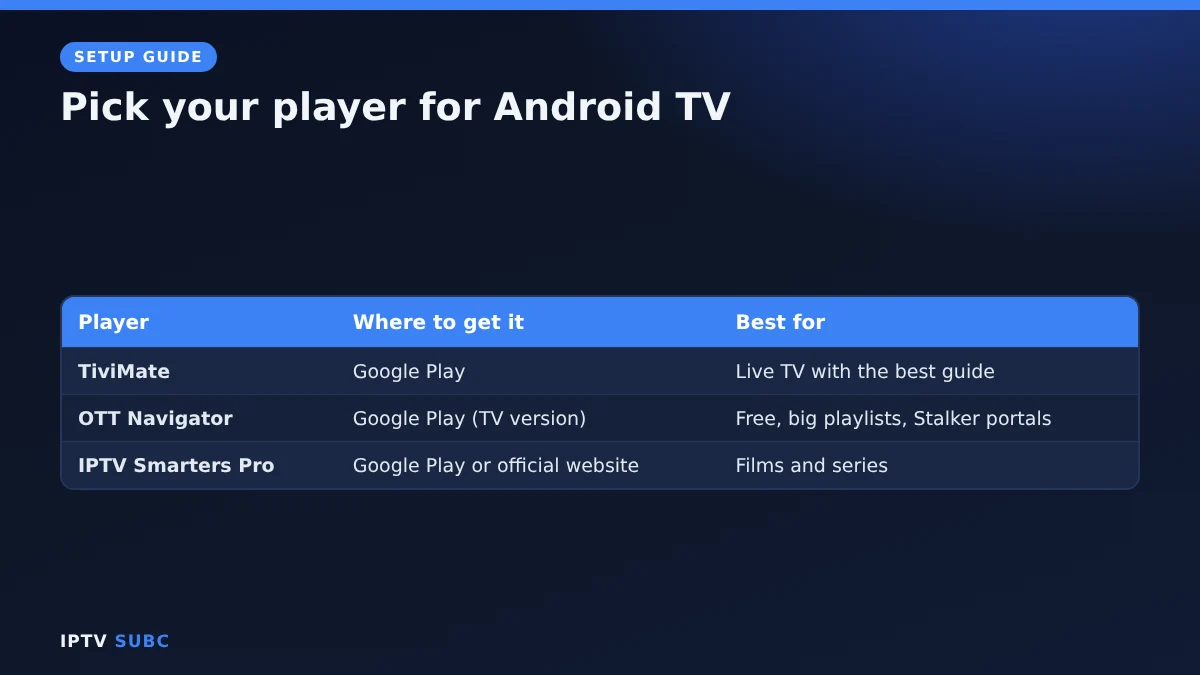
A player is the app that shows your channels. It contains no channels itself; your provider supplies those.
| Player | Where to get it | Best for |
|---|---|---|
| TiviMate | Google Play | Live TV with the best TV guide |
| OTT Navigator | Google Play (TV version) | Free, large playlists, Stalker portals |
| IPTV Smarters Pro | Google Play if listed in your country, otherwise the official website | Films and series |
Not sure which to pick? Our comparison of the best IPTV player for Fire TV applies to Android TV as well, because the apps are the same.
Step 1: Install a player from Google Play
- Open Google Play. On Google TV, go to the Apps tab and select Search for apps.
- Search for the player by name, for example TiviMate.
- Check the developer name before you install. Look-alike apps exist, so make sure it is the official one.
- Select Install, then Open.
The app also appears in your apps list, where you can move it to the front for quick access.
Step 2: Sideload a player that is not in Google Play (optional)
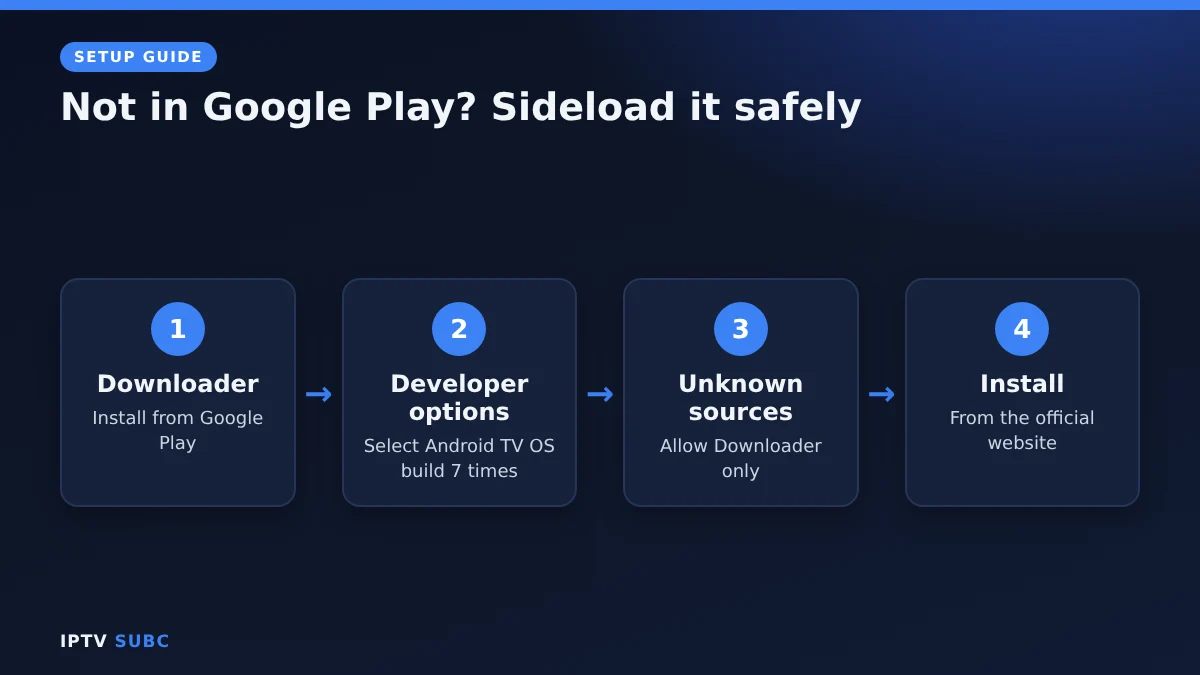
If your player is not listed in your country, you can install it from the developer’s official website with the Downloader app, just like on Fire TV. Menu names vary a little by brand, but the steps are similar:
- Install Downloader by AFTVnews from Google Play.
- Unlock developer options: go to Settings, System, About and select Android TV OS build seven times. On Google TV the path is the same.
- Allow Downloader to install apps. On most devices this is under Settings, Apps, Security & restrictions, Unknown sources.
- Open Downloader, enter the player’s official web address and install it.
- Delete the installer file afterwards to save storage.
Only use official addresses. Avoid “modded” or “Premium unlocked” apps from unknown sites; they often contain malware and never receive updates.
Step 3: Add your login
Open the player and choose how to log in.
- Xtream Codes (server, username, password) is the easiest. The TV guide, films and series load automatically. Type the server address with http:// and the port, for example http://example.com:8080.
- M3U link works too: paste the link your provider sent. You may need to add the guide link yourself.
- Stalker portal (MAC address plus portal URL) works in players such as TiviMate and OTT Navigator, if your provider offers it. It is the same method a MAG box uses.
Typing is easier with a phone: many Android TV devices let you type with the Google TV app on your phone.
Step 4: Load the guide and tune playback
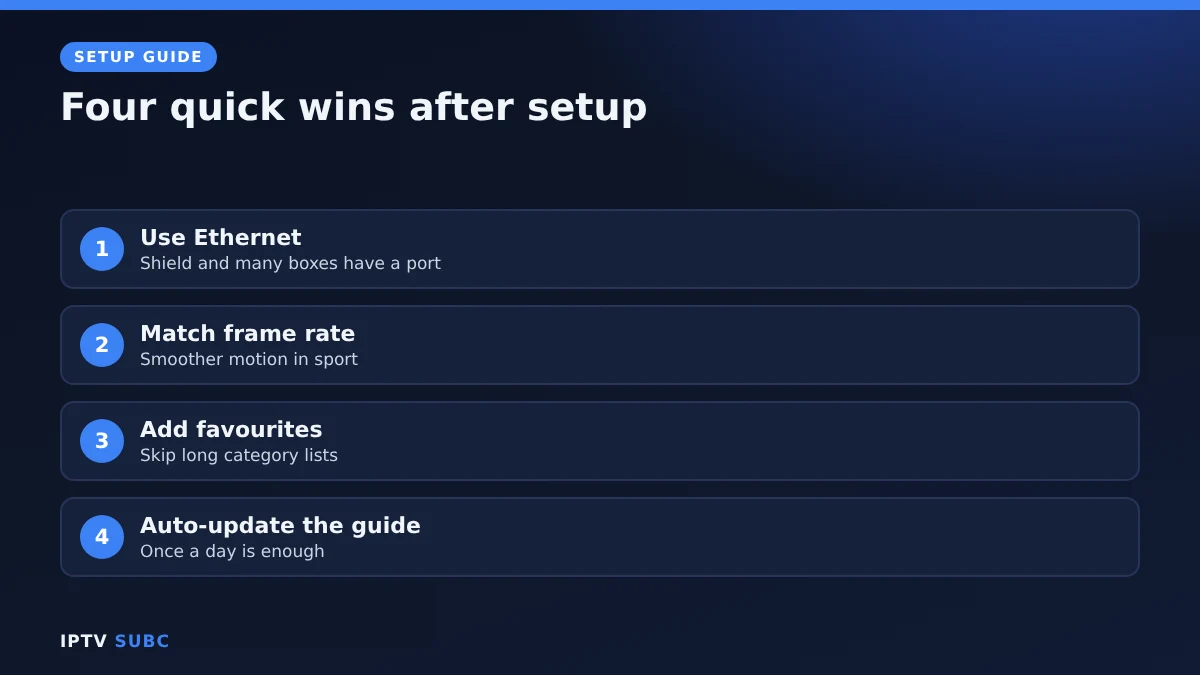
- TV guide: with Xtream Codes it appears by itself within a minute or two. With M3U, add the EPG link in the player’s settings. If it stays empty, see IPTV guide not working.
- Network: many Android TV boxes and the NVIDIA Shield have an Ethernet port. Use it for live sport; it is the single best fix for buffering.
- Frame rate: if motion looks jerky, turn on the device’s match-frame-rate option, or the player’s AFR setting if it has one.
- Favourites: mark the channels you watch most, so you can skip long category lists.
Best Android TV devices for IPTV
| Device | Why it is good | Watch out for |
|---|---|---|
| NVIDIA Shield TV | Fast, Ethernet port, handles huge playlists | Higher price |
| Chromecast with Google TV / Google TV Streamer | Easy, Google Play built in | Check storage on cheaper models |
| Sony, TCL, Hisense or Philips Google TV | No extra box needed | TV processors can be slow |
| Generic Android TV boxes | Cheap | Many run old, uncertified software |
Comparing options beyond Android TV? See the best devices for IPTV.
Tune IPTV on Android TV for live channels: troubleshooting
| Problem | Fix |
|---|---|
| Player not found in Google Play | It may not be listed in your country; sideload it from the official website (Step 2) |
| “Install blocked” when sideloading | Allow Downloader under Unknown sources, then try again |
| Login fails | Check the server URL has http:// and the port; retype the username and password |
| Streams buffer | Use Ethernet, then follow our IPTV buffering fixes; they work on Android TV too |
| App feels slow | Clear the app cache in Settings, Apps, and close background apps |
Good to know: players contain no channels; those come from your provider. For official device help, see Google TV Help. Another walkthrough is IPTV on Android TV on Legion Webs.
Using your provider’s own app
Some IPTV services now offer their own player for Fire TV and Android. If you subscribe to one of them, you sign in with your account and the subscription loads by itself, with nothing to type. These apps can also load an Xtream Codes login or M3U link from another service.
| App | Downloader code | Works on |
|---|---|---|
| 8K IPTV Player | 3330041 | Fire TV, Android TV, Google TV, Android phones |
| 4K Flix Player | 1250343 | Fire TV, Android TV, Google TV, Android phones |
| 4KFlexHub Player | 5669139 | Fire TV, Android TV, Google TV, Android phones |
To install one, open Downloader, enter the code and select Go. Like other sideloaded players, they need a Fire OS device, not a Vega OS stick. Disclosure: these services are partners of IPTV SUBC.
There is also an Android IPTV setup guide on 8K IPTV Group that covers phones, tablets and Android boxes.
FAQ
Is Android TV better than a Fire TV Stick for IPTV?
Both run the same players. Android TV installs most of them from Google Play, and boxes like the NVIDIA Shield are faster; a Fire TV Stick is usually cheaper.
Does Google TV work the same way?
Yes. Google TV is Android TV with a different home screen, so the same apps and steps apply.
Do I need a VPN for IPTV on Android TV?
It is optional. A VPN adds privacy and can help if your internet provider slows down streaming. Most major VPNs have Android TV apps in Google Play.
Can I use the same login on my phone?
Usually yes, as long as your plan allows enough connections at the same time.
Is TiviMate free on Android TV?
The basic player is free; Premium is an optional paid upgrade.
Next steps
Pick your player with the best IPTV player comparison, then set up TiviMate: the in-app steps are the same on Android TV.