
Key takeaway: “Failed to authorize” in IPTV Smarters almost always means the server rejected your login: a typo in the server URL, username or password, an expired or busy account, or a network that blocks the server. Check them in that order and most people are back in within five minutes.

IPTV Smarters Pro is only a player. It has no channels of its own, so when it says “Failed to authorize”, the app is rarely the problem. The message means your provider’s server looked at the details you typed and refused them, or never received them at all. The good news is that the cause is nearly always simple, and you can find it without any technical knowledge.
This guide starts with the error most people search for, IPTV Smarters failed to authorize, and walks through every cause in order, from the most common to the rarest. After that, it covers the other messages you may see in Smarters, such as “max connections reached”, “could not connect” and a black screen, each with its own fix.
In this guide
- What “failed to authorize” means in IPTV Smarters
- How to fix IPTV Smarters failed to authorize
- Failed to authorize on Smarters, but works elsewhere
- Other IPTV Smarters errors and their fixes
- Fix 2: Expired account or “max connections reached”
- Fix 3: “No internet” or “could not connect”
- Fix 4: Black screen or channels that will not play
- Fix 5: Clear the cache when Smarters freezes
- IPTV Smarters Pro not working at all
- When to contact your provider
- FAQ
- Next steps
What “failed to authorize” means in IPTV Smarters
When you log in, Smarters sends three things to your provider’s server: the server URL, your username and your password. The server then checks that the account exists, that it is active and that it has a free connection. If any of those checks fails, Smarters shows “Failed to authorize”, “Authorization failed” or “Invalid details”, depending on the version.
So the error does not tell you the app is broken. It tells you one of these six things went wrong:
| Cause | How common | Quick check |
|---|---|---|
| Typo in the server URL | Very common | Compare it character by character with your welcome email |
| Typo in the username or password | Very common | Retype them by hand; they are case-sensitive |
| Account expired or not yet active | Common | Check the expiry date with your provider |
| All connections in use | Common | Stop playback on every other device |
| Network or internet provider blocks the server | Less common | Try the same login on mobile data |
| VPN server refused | Less common | Turn the VPN off, or switch server |

How to fix IPTV Smarters failed to authorize
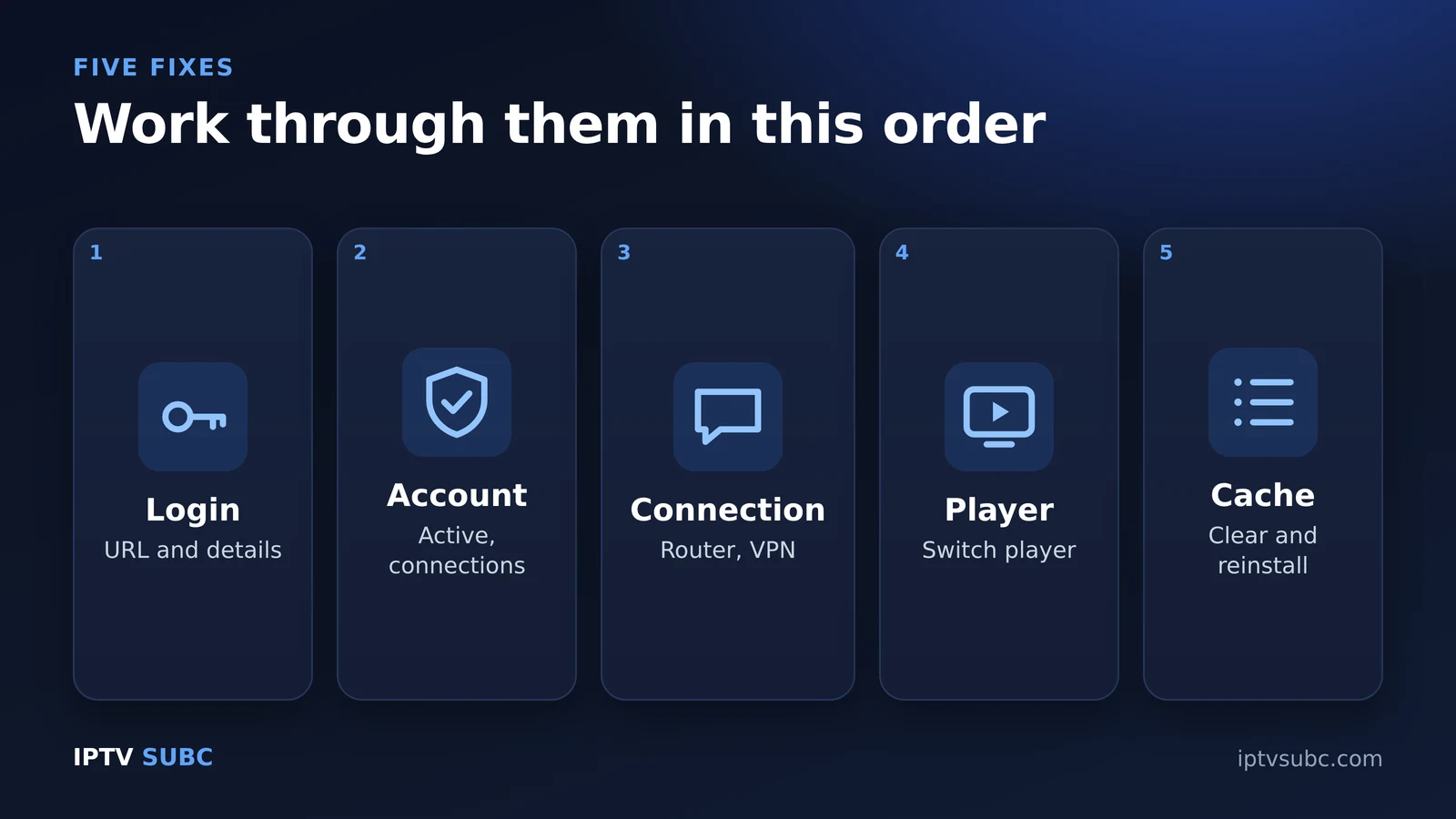
Work through these steps in order. Test the login again after each one, so you know which step fixed it.
Step 1: Check the server URL
The server URL is the most common culprit, because it is long and easy to mistype.
- Include http:// and the port, for example http://server.example:8080. Leave out the port only if your provider’s email does too.
- Do not add a slash at the end. The URL should finish with the port number or the domain, not with “/”.
- Keep http as http. Do not change it to https unless your provider tells you to.
- Watch for look-alike characters, such as a capital O instead of a zero, or a lowercase L instead of the number 1.
Step 2: Retype the username and password
Usernames and passwords are case-sensitive, so “John123” and “john123” are different logins. Type them by hand instead of pasting them, because copying from an email often adds an invisible space at the start or end. On a Fire TV remote, it helps to open the on-screen keyboard’s symbols page and double-check every character before you press Add User.
Step 3: Check that the account is active
If the same login worked yesterday, the account is the next suspect. Log in to your provider’s customer page or ask support to confirm three things: that the subscription has not expired, that it has been activated, and how many devices it allows at the same time. A brand-new trial can also take a few minutes to go live after you receive the email.
Step 4: Free up a connection
Every screen that is playing counts as one connection, and an app left open on another TV or phone keeps its connection busy. Close Smarters, or any other player, on every other device, wait a minute, then try again. If you regularly need more screens, see our guide to IPTV multiple connections.
Step 5: Test on another network
Some internet providers and router safety filters block IPTV servers. To check, connect your phone to mobile data, install Smarters there and log in with the same details. If it works on mobile data but not on your home Wi-Fi, the block is on your home network. Turning off your router’s “safe browsing” or web-protection feature often helps; otherwise, a VPN usually does. See VPN on Fire TV.
Step 6: Switch or turn off the VPN
The opposite can also happen: some providers refuse logins from busy VPN servers. If you already use a VPN, turn it off and try again. If it then works, reconnect the VPN to a different city or server.
Step 7: Check the date and time on your device
A device with the wrong date or time can fail secure connections. On a Fire TV, open Settings, then Preferences, and check that the time zone is correct. On Android TV, turn on automatic date and time.
Step 8: Reset the app
If every detail is correct and the account is active, clear the app’s stored data and start fresh:
- Open Settings, Applications, Manage Installed Applications, IPTV Smarters.
- Select Force stop, then Clear data. This removes saved logins.
- Open Smarters, choose Login with Xtream Codes API and enter the details again.
Still failing? Delete the user profile inside Smarters, add it again, and if needed reinstall the latest official version, as in our IPTV Smarters Pro on Fire TV guide.

Failed to authorize on Smarters, but works elsewhere
Sometimes the same login works in TiviMate or on another device but not in Smarters. In that case, the details are fine and the problem is local:
- Old app version: update Smarters, or reinstall the latest official release.
- Wrong login type: for server details, choose Xtream Codes API; for a playlist link, choose M3U URL. Mixing them up gives an error. See M3U vs Xtream Codes.
- Saved profile with an old URL: providers occasionally change the server address. Delete the old profile and add a new one with the current URL from your provider.
Other IPTV Smarters errors and their fixes
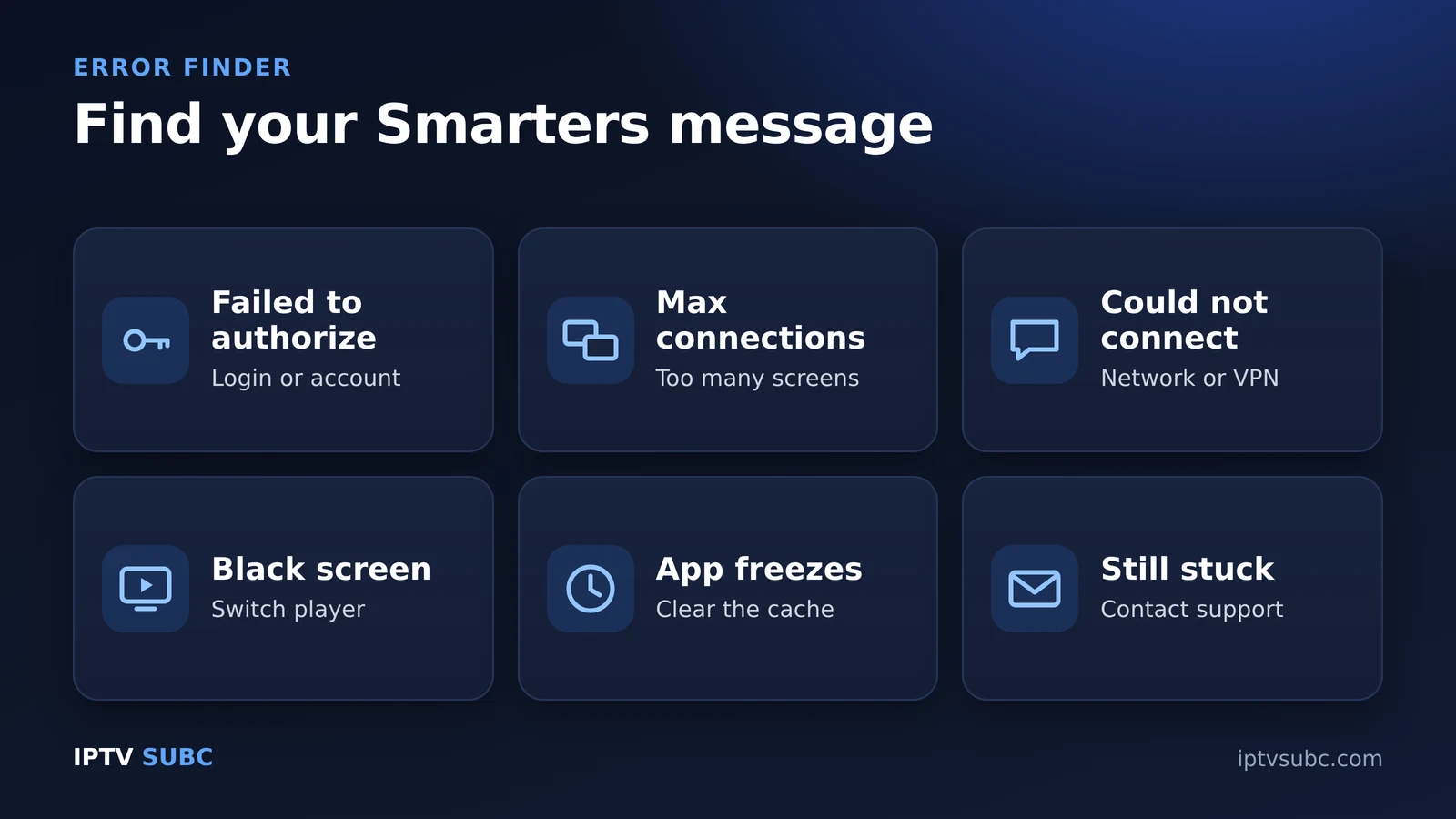
Not seeing “failed to authorize”? Find your message in this table, then jump to the matching fix below.
| Error or symptom | Most likely cause | Fix |
|---|---|---|
| “Failed to authorize” or “Invalid details” | Wrong URL, username or password, or inactive account | Steps 1 to 8 above |
| Login worked before, now fails | Subscription expired, paused or server changed | Fix 2 |
| “Max connections reached” | Too many devices watching at once | Fix 2 |
| “No internet” or “Could not connect” | Network, DNS or VPN problem | Fix 3 |
| Channels load but will not play, black screen | Player setting or stream issue | Fix 4 |
| App freezes or closes | Corrupted cache or old version | Fix 5 |
Fix 2: Expired account or “max connections reached”
Log in to your provider’s account page or contact support. Check that the subscription is active and how many devices it allows at the same time. If a phone or another TV is still playing, close it there first, then try again. Remember that leaving a stream paused on another device still counts as a connection.
Fix 3: “No internet” or “could not connect”
- Restart your Fire TV and your router.
- Test that other apps, such as YouTube, play normally.
- If you use a VPN, turn it off and try again; then try a different VPN server.
- If nothing loads at all, your internet provider may block the server. Test on mobile data, as in Step 5 above.
Fix 4: Black screen or channels that will not play
IPTV Smarters has more than one built-in player. Open Settings, Player Selection (names vary by version) and switch to another player. Also, test the same channel in VLC: if it plays there, the stream is fine and the issue is the app setting. See IPTV in VLC.
Fix 5: Clear the cache when Smarters freezes
- Go to Settings, Applications, Manage Installed Applications, IPTV Smarters.
- Select Force stop, then Clear cache.
- Still broken? Select Clear data (this removes your login), then sign in again.
- As a last step, uninstall and reinstall the latest official version.
IPTV Smarters Pro not working at all
If Smarters will not even open, or every channel fails on every device at the same moment, the cause is almost certainly on the provider’s side: a server outage or a changed server address. Wait 15 minutes and try again, then contact support. If Smarters works but buffers, that is a different problem with its own fixes: Wi-Fi, buffer size and peak-time slowdowns. Follow the IPTV buffering fixes. And if the guide is empty, see IPTV guide not working.
When to contact your provider
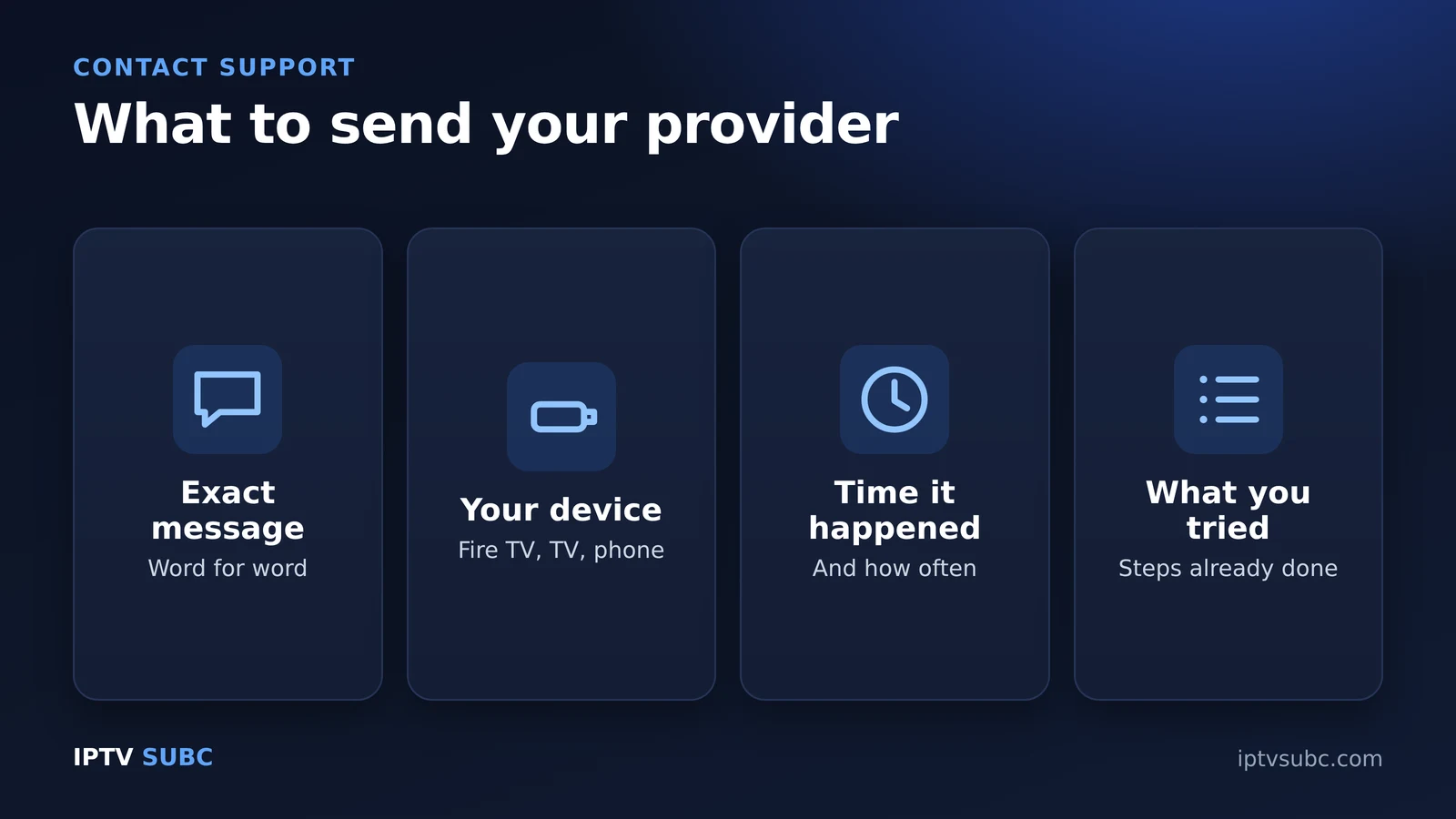
Contact support if the login fails after you have checked every character, if errors start suddenly on all devices at once, or if “max connections” appears while nothing else is playing. Send them the exact error message, the device you use and the time it happened; that helps them find the cause quickly.
Remember that Smarters does not sell channels, so its makers cannot reset your account. Only your provider can. If your current service keeps failing and support never answers, it may be time to switch; our guide to the best IPTV service shows how to test a new provider with a free trial first.
For more login-specific checks, see the IPTV Smarters login failed guide from 8K IPTV Group. To test whether a stream plays outside Smarters, the free VLC media player is a useful tool. The original lesson is IPTV Smarters Not Working on Legion Webs.
FAQ
Why does IPTV Smarters say failed to authorize?
The provider’s server refused your login. The usual causes are a typo in the server URL, username or password, an expired account, all connections in use, or a network that blocks the server.
How do I fix failed to authorize on Firestick?
Retype the server URL with http:// and the port and no slash at the end, retype the username and password by hand, then confirm with your provider that the account is active. If it still fails, clear the app’s data and log in again.
Why did Smarters stop working when it worked yesterday?
Most sudden failures come from the service side: an expired plan, a changed server address or an outage. Contact your provider first.
Does IPTV Smarters have its own channels?
No. It is a player only. The channels, and your login, come from your IPTV provider.
Will reinstalling delete my login?
Yes. Keep your login details handy before you reinstall.
What does “max connections reached” mean?
Your plan’s limit of screens watching at the same time is used up. Close a stream on another device, or ask your provider about more connections.
Is there an alternative if Smarters keeps failing?
Yes. TiviMate and OTT Navigator use the same login; compare them in best IPTV player for Fire TV.
Next steps
Once it works, keep it smooth with the IPTV buffering fixes, or try TiviMate on Fire TV.