
Key takeaway: Your IPTV EPG (TV guide) usually loads by itself with an Xtream Codes login. With an M3U playlist, you add your provider’s XMLTV link in the player once and let it download.
The TV guide is what turns a long list of channel names into real television. With it, you can see what is on now and next, browse tonight’s schedule, set reminders and, in some players, use catch-up and recording. Without it, you are zapping blind.
This guide explains IPTV EPG setup in plain English: what the guide is, where to find your guide link, how to add it in the most popular players, how to keep it accurate and what to do when channels stay blank. It takes about ten minutes.
In this guide
What is an IPTV EPG?
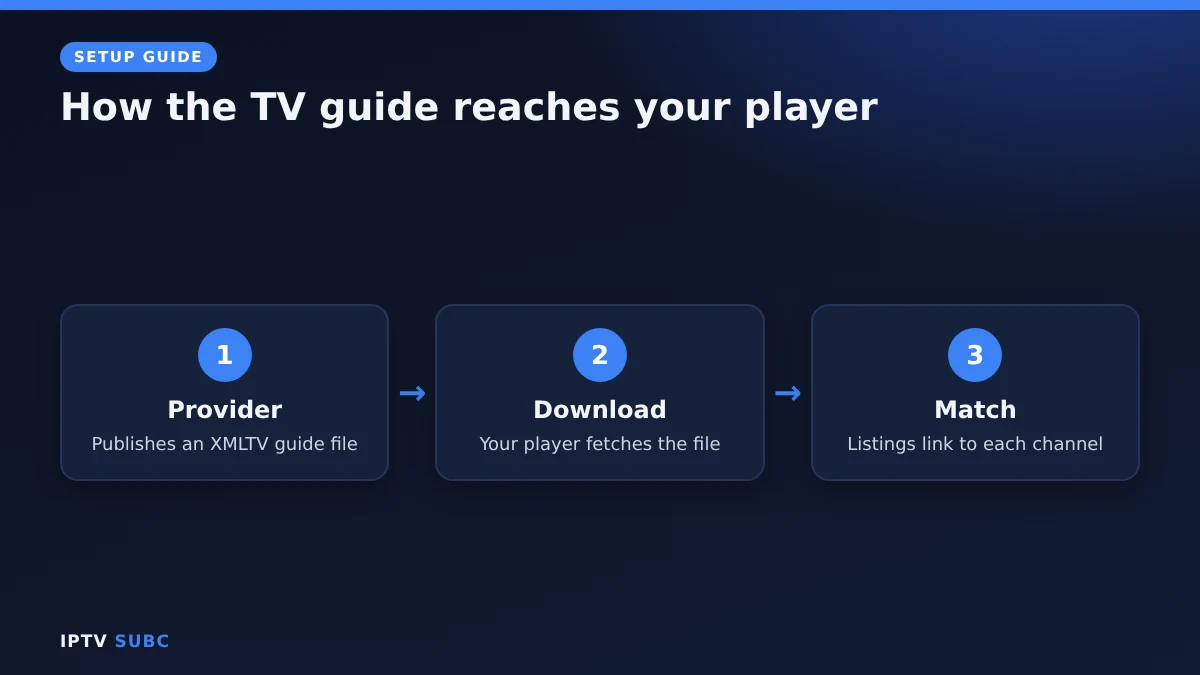
EPG stands for Electronic Programme Guide. It is the grid of shows and times you know from cable TV. Behind the scenes, your provider publishes the guide as a file in a standard format called XMLTV. Your player downloads that file and matches each listing to a channel in your playlist.
So the guide and the channels are two separate things. That is why you sometimes see channels playing perfectly while the guide stays empty: the channel list arrived, but the guide file did not.
What you need
- An IPTV player such as TiviMate, IPTV Smarters Pro or OTT Navigator
- Your login, ideally Xtream Codes details (see M3U vs Xtream Codes)
- The EPG link from your provider, if you use an M3U playlist
- About ten minutes
Where to find your IPTV EPG link
If you log in with Xtream Codes, you usually do not need a link at all: the player asks the server for the guide automatically. With an M3U playlist, look in three places:
- The welcome email, next to your M3U link. Look for the words “EPG” or “XMLTV”.
- Your account area on the provider’s website.
- Built from your login. On many Xtream-based services it follows this pattern, with your own details: http://server.example:8080/xmltv.php?username=YOURNAME&password=YOURPASS
If you cannot find it, simply ask your provider for “the EPG URL”. It is a normal request.
Add the guide in your player
Menu names change a little between versions, but the idea is always the same: find the EPG or TV guide setting, then add or reload the source.
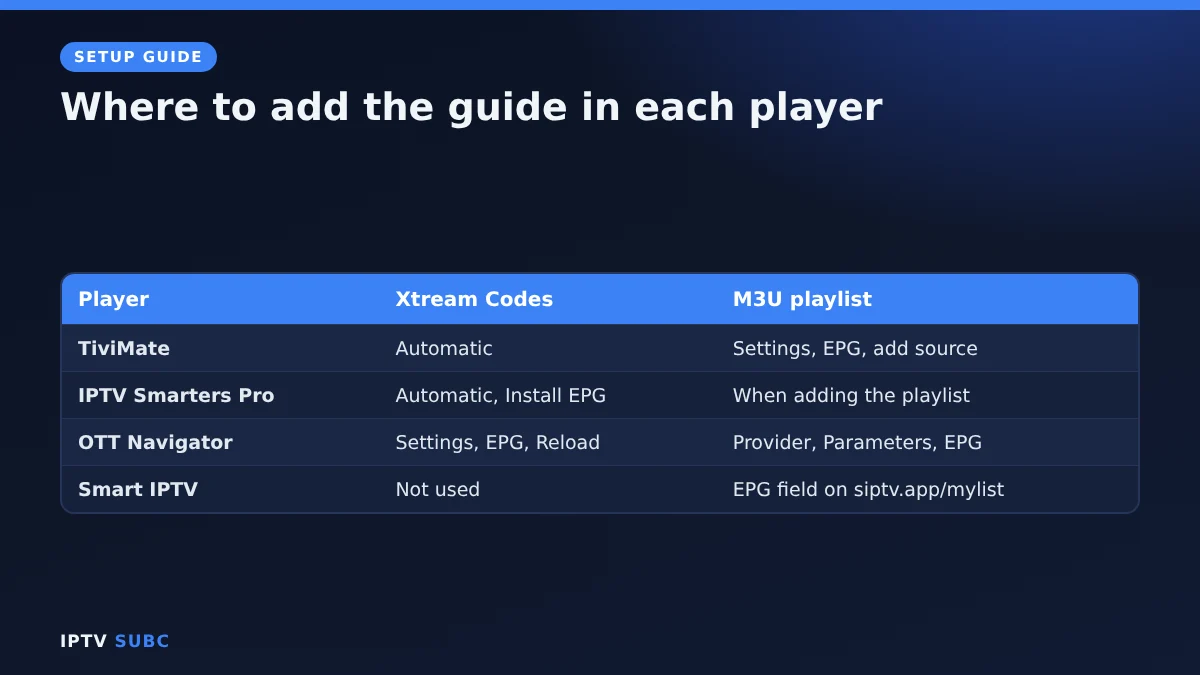
| Player | With Xtream Codes | With an M3U playlist |
|---|---|---|
| TiviMate | Loads automatically | Settings, EPG, add an EPG source and paste the link |
| IPTV Smarters Pro | Loads automatically; use Install EPG to refresh | Paste the EPG link when adding the playlist, if offered |
| OTT Navigator | Loads automatically; Settings, EPG, Reload | Settings, Provider, Parameters, EPG |
| Smart IPTV | Not used | Add the link in the EPG field on the siptv.app mylist page |
After adding the link, keep the app open while it downloads. For a large service, this can take a minute or two. Then open the guide and check a few channels you know well.
Keep your IPTV EPG accurate
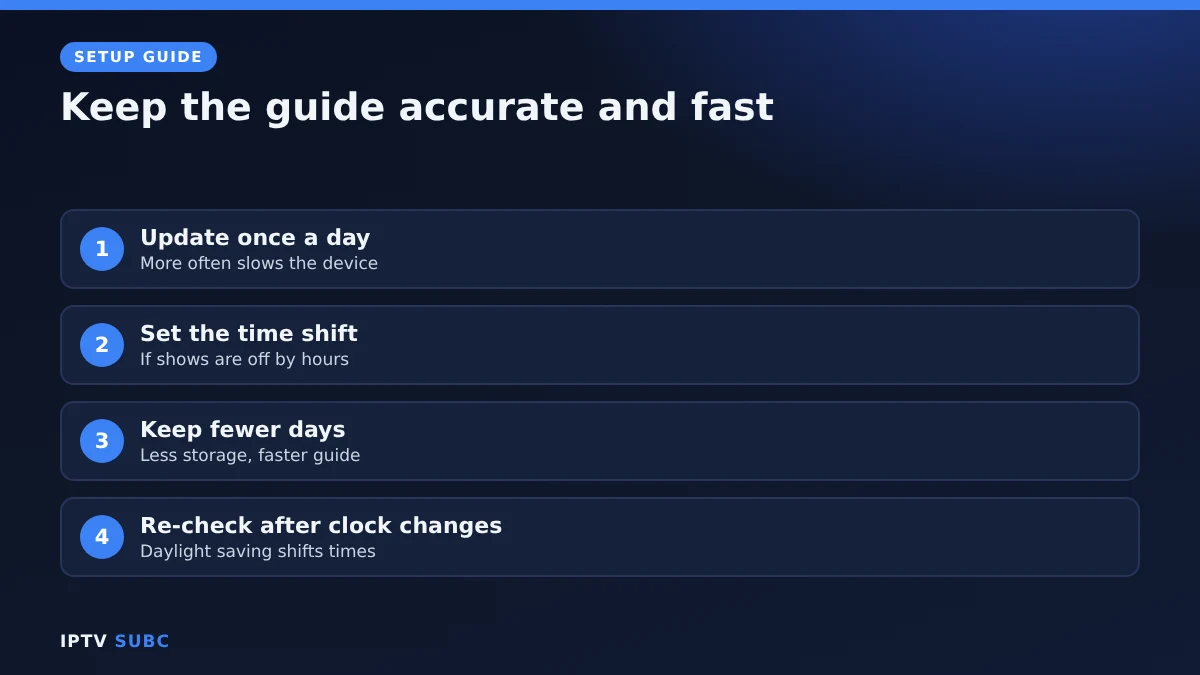
- Update interval: once every 24 hours is enough for most people. Updating more often only slows down your device.
- Time shift: if every programme is off by exactly one or more hours, use the player’s EPG time offset to correct it. Also check your device’s time zone.
- Days to keep: fewer days of past listings means less storage and a faster guide.
- After daylight-saving changes: check the times again, because everything can shift by an hour.
When some channels stay blank
A few empty rows are normal. The provider may simply have no guide data for those channels, or the channel IDs in the playlist and the guide do not match. In TiviMate and some other players, you can assign a guide entry to a channel by hand. Otherwise, report the channels to your provider. Film and series sections never have guide data, which is expected.
Free guide sources?
Public XMLTV sources exist, but the channel names must match your playlist exactly, which they often do not. In practice, your provider’s own EPG almost always works better. Use a public source only for a handful of missing channels, and only if your player lets you add several sources.
Troubleshooting
| Problem | Fix |
|---|---|
| Guide completely empty | Reload the EPG, then restart the app; check the link downloads a file on your phone |
| Some channels have no listings | No data or mismatched IDs; ask the provider or assign by hand |
| Times off by an hour | Adjust the EPG time shift and check the device time zone |
| Guide disappears after a day | Turn on automatic EPG updates |
| App slow after adding the guide | Keep fewer days of listings and clear the app cache |
For a full list of guide fixes, see IPTV guide not working. Another walkthrough is How to Add EPG to IPTV on Legion Webs.
Most providers send an EPG link with your login details; the 4K Flix IPTV installation tutorial shows where to paste it in popular players.
FAQ
Do I need to add an EPG with Xtream Codes?
Usually not. Players fetch the guide from the server automatically; just reload it if it looks empty.
Can I add a free EPG source?
Yes, but names must match your playlist, so your provider’s EPG almost always works better.
Why are there no pictures in my guide?
Many guide sources include only titles and times. Pictures and descriptions depend on the provider’s data.
Is EPG the same as catch-up?
No. The EPG is the schedule; catch-up lets you replay past programmes when your service supports it.
How long does the guide take to load?
Usually under two minutes, depending on the size of your provider’s guide and your device.
Next steps
For the best guide experience on Fire TV, set up TiviMate on Fire TV. If channels stutter, follow the IPTV buffering fixes.